Project Teams
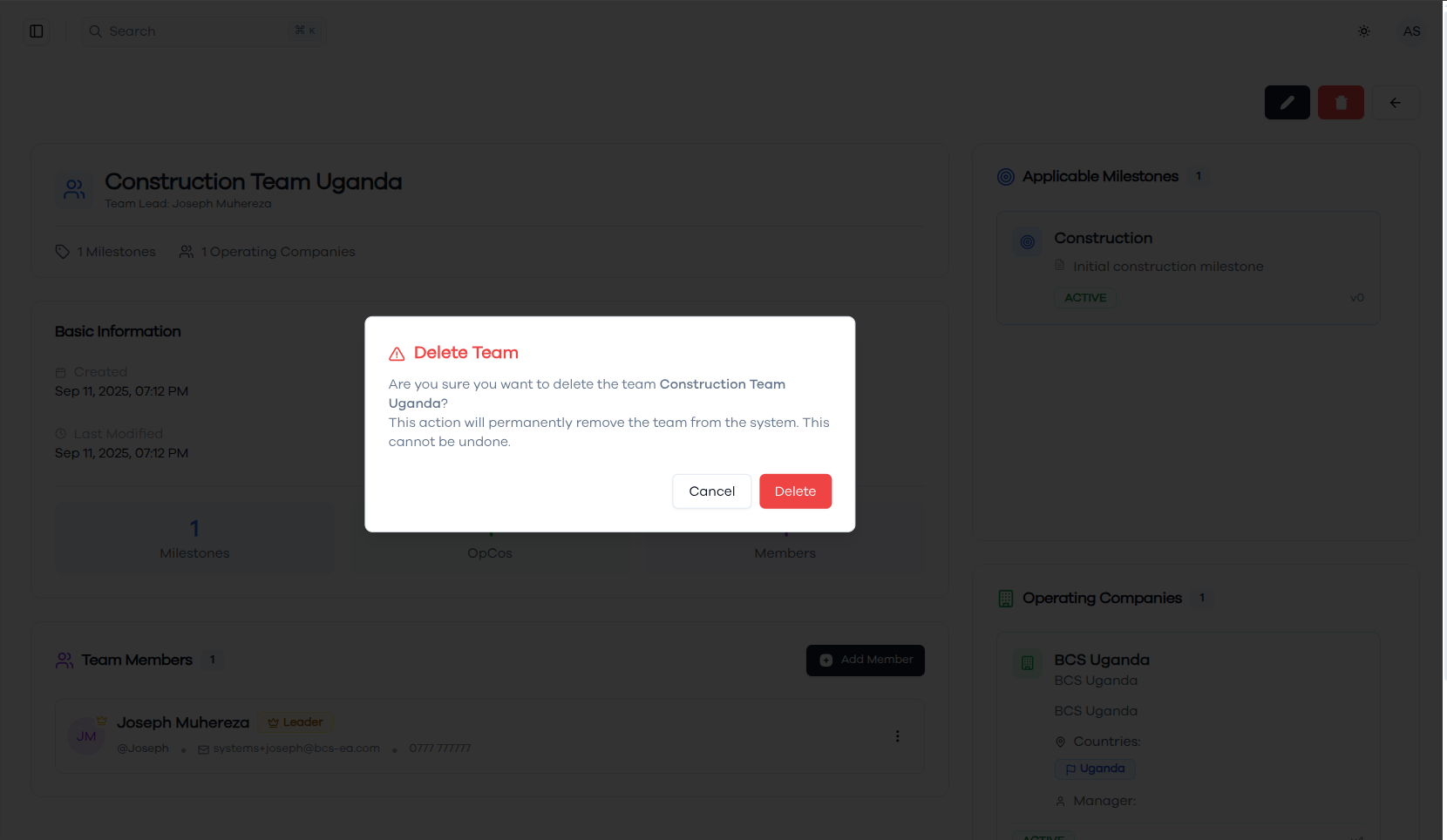
The Project Teams page provides comprehensive management capabilities for organizing project teams within the project management system. This is the central hub for creating teams, managing team compositions, and configuring team settings based on milestone types and operating companies.
Teams List
The main teams view displays all project teams in a searchable table format. Each team entry shows the team name, associated milestone types (displayed as colored badges like Acceptance, Core Provisioning, Transmission, Construction), operating companies, creation date, and last update information. The interface includes search functionality to quickly locate specific teams and displays the total number of records. Teams are organized by their specialized milestone types, helping project managers identify the right teams for specific project phases.
Creating New Team
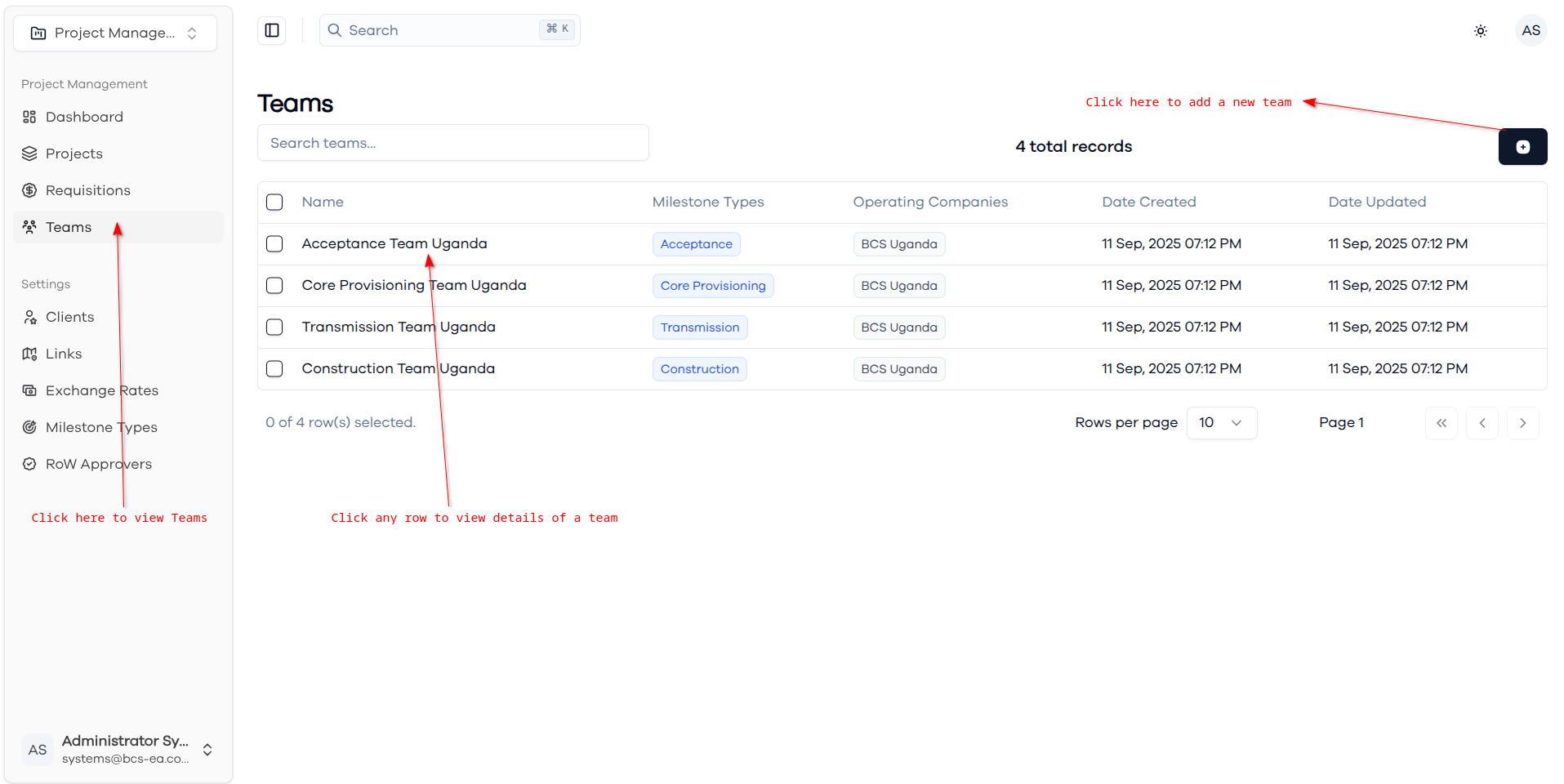
The team creation form allows you to establish new project teams with specific milestone type specializations and operating company assignments. Enter the team name and select from available milestone types including Transmission, Construction, Core Provisioning, Acceptance, and Technical Transmission. Choose the appropriate operating companies that the team will work within. This configuration ensures teams are properly aligned with project requirements and organizational structure.
Team Details View
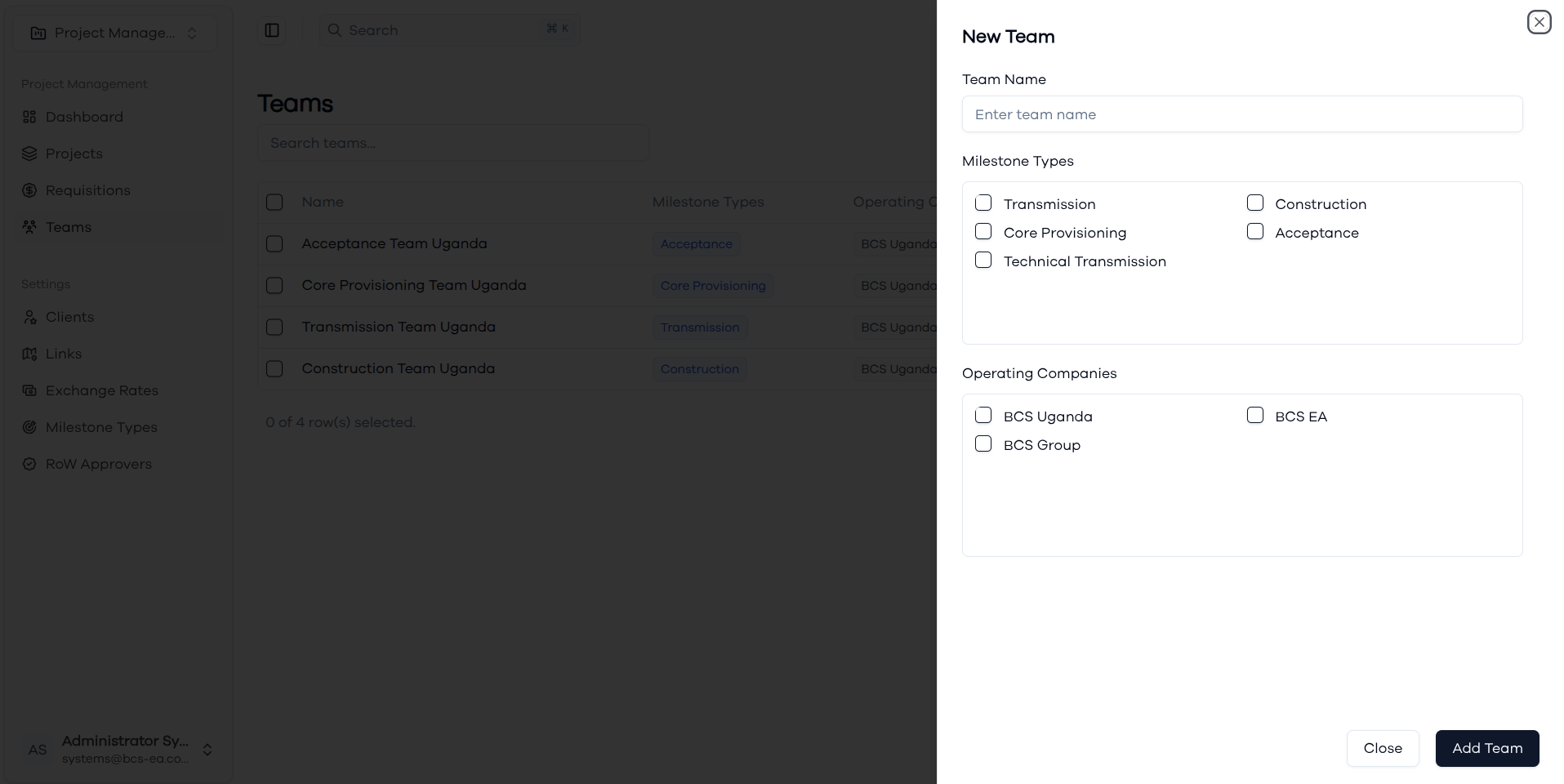
The team details page provides a comprehensive overview of a selected team including basic information, milestone associations, operating company assignments, and team composition. The interface displays summary statistics showing the number of milestones, operating companies (OpCos), and team members. The applicable milestones section shows specific milestone types the team handles with their current status. Team member information includes contact details and leadership roles within the team structure.
Adding Team Members
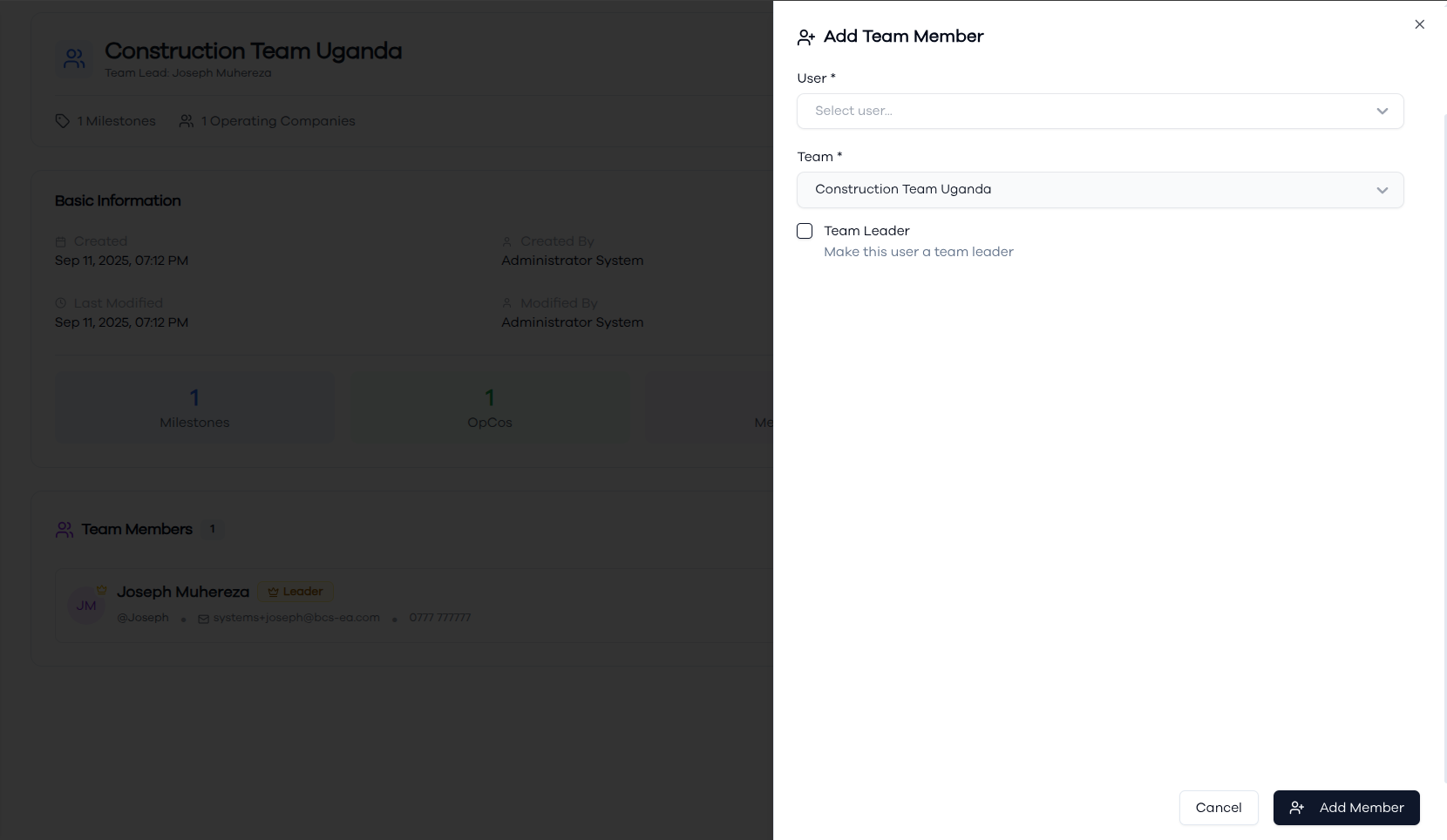
The add team member dialog allows you to assign staff members to project teams with specific roles and responsibilities. Select users from the available staff list and specify the team they're joining. You can designate team leadership by checking the "Team Leader" option, which grants additional team management permissions. This ensures proper team hierarchy and clear leadership structure for project execution.
Updating Team Configuration
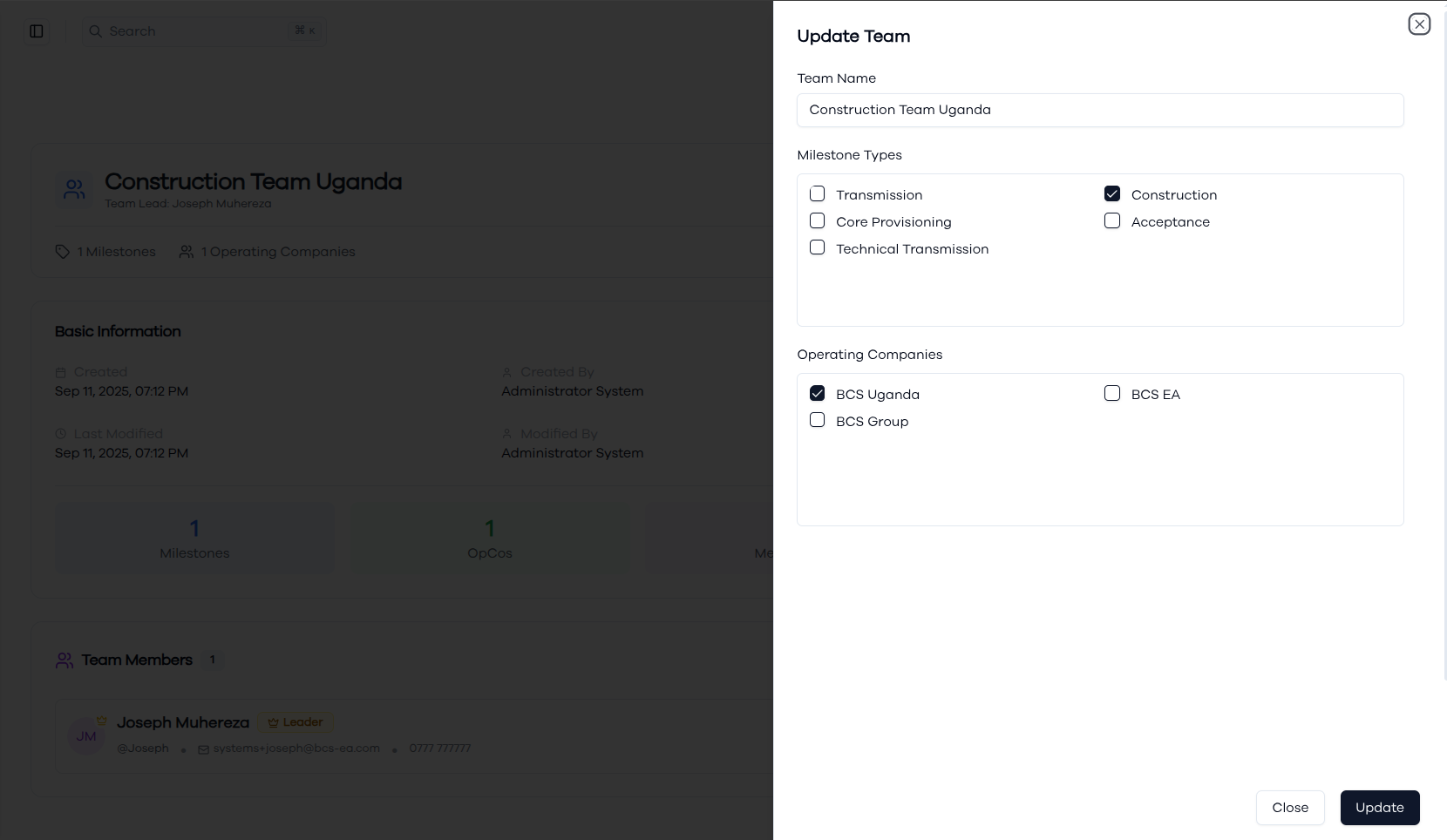
The team update form provides comprehensive editing capabilities for all team settings including name modifications, milestone type adjustments, and operating company assignments. You can add or remove milestone type specializations and modify operating company associations based on changing project requirements. The form maintains existing team member associations while allowing configuration updates to team scope and capabilities.
Deleting a Team
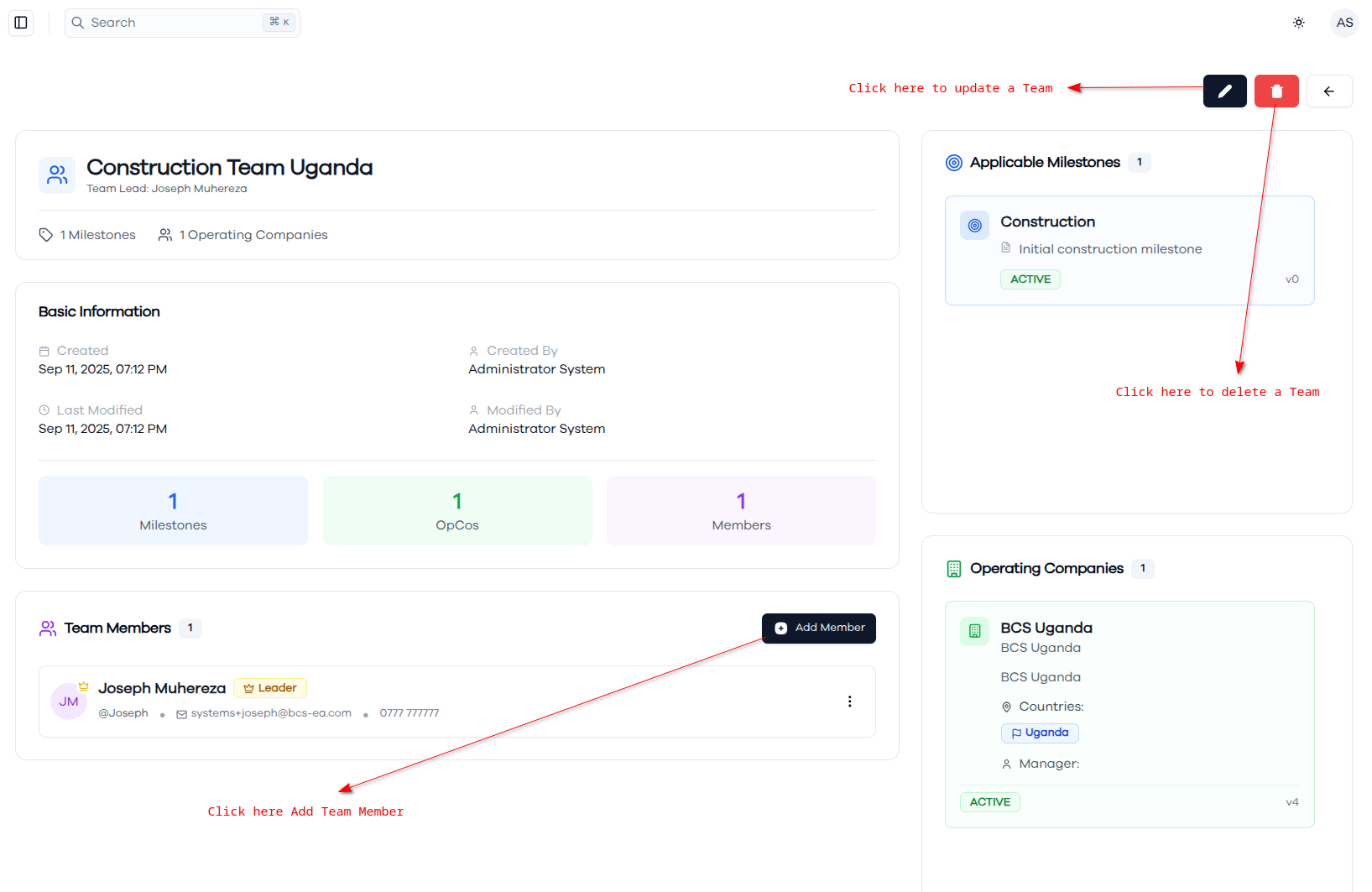
When deleting a team, the system displays a confirmation dialog to prevent accidental deletions. The dialog clearly states that the action will permanently remove the team from the system and cannot be undone, ensuring administrators understand the consequences before proceeding. This protection is crucial since team deletion affects project assignments and milestone management across the system.