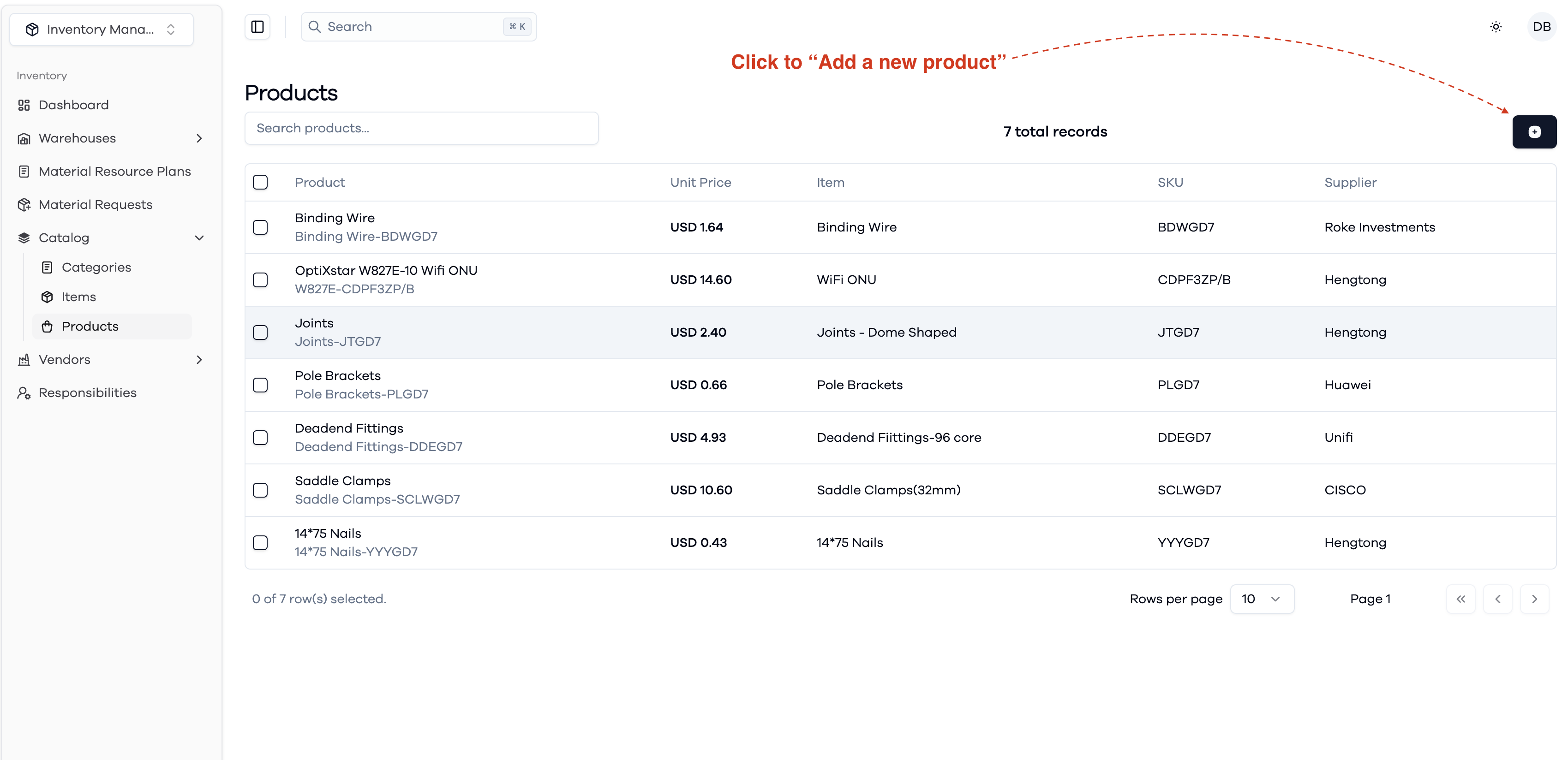
Products
Step 1: Add Product Details
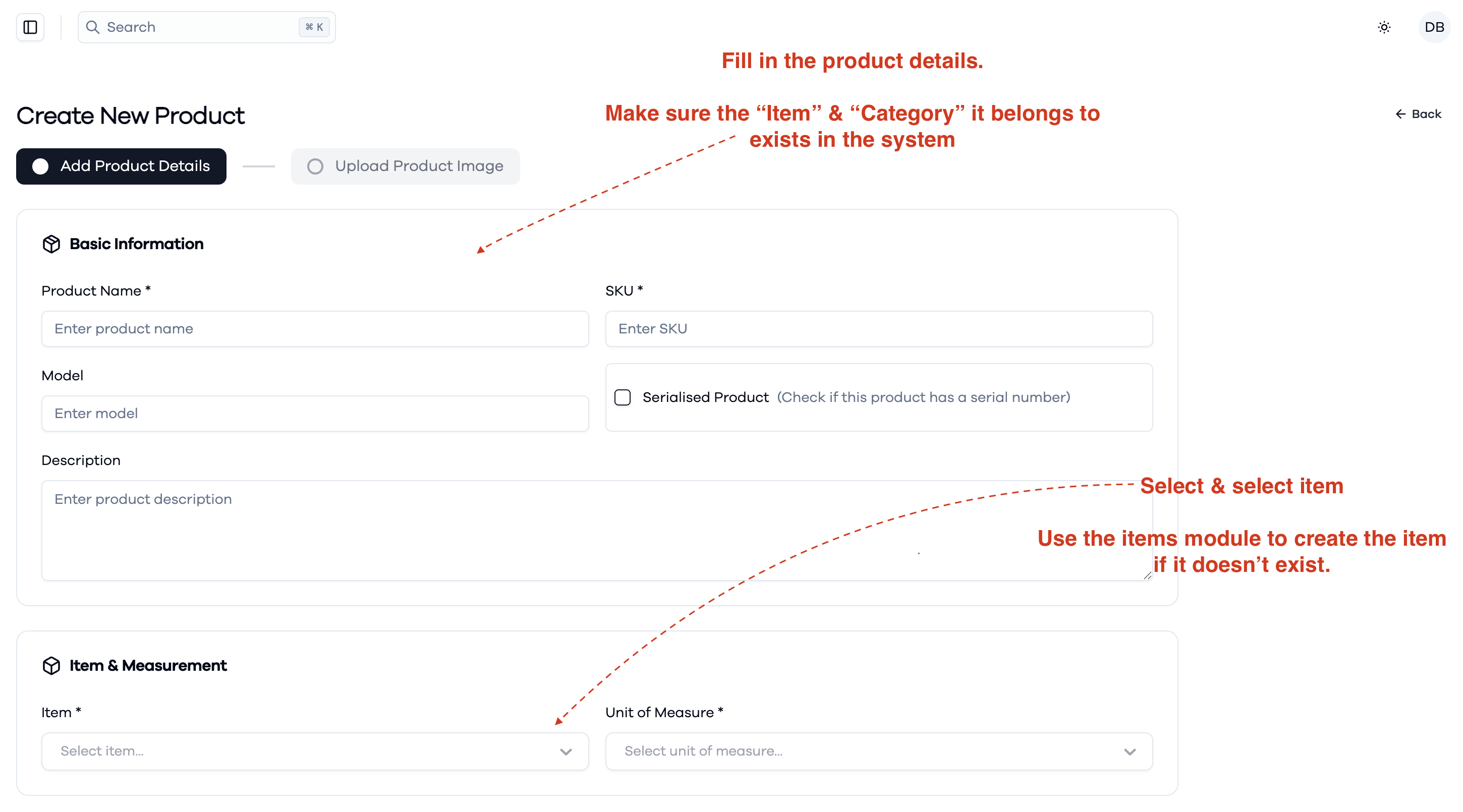
The product creation process begins with entering basic product information:
Basic Information
- Product Name (Required): Enter the name of the product
- SKU (Required): Enter a unique Stock Keeping Unit identifier
- Model: Enter the product model number or identifier
- Description: Provide a detailed description of the product
- Serialised Product: Check this option if the product has serial numbers for individual item tracking
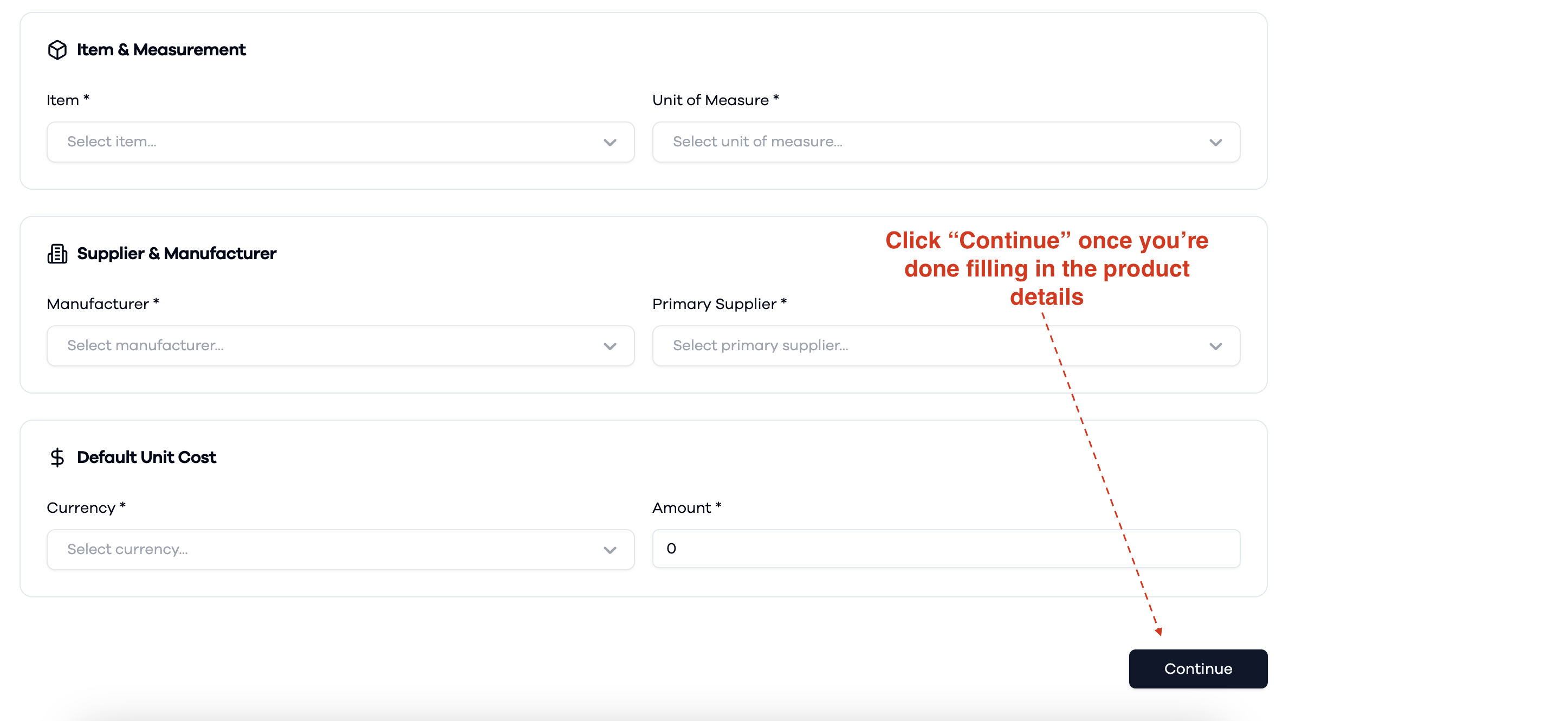
Item & Measurement
- Item (Required): Select the item type from the dropdown. If the item doesn't exist, use the Items module to create it first
- Unit of Measure (Required): Select the appropriate unit of measurement (e.g., pieces, kilograms, meters)
Supplier & Manufacturer
- Manufacturer (Required): Select the product manufacturer from the dropdown
- Primary Supplier (Required): Choose the main supplier for this product
Default Unit Cost
- Currency (Required): Select the currency for pricing
- Amount (Required): Enter the default cost per unit
Step 2: Upload Product Image
After completing the product details, you can optionally upload a product image to help with visual identification.
Important Notes
- Ensure the Item and Category selections correspond to existing entries in your system
- If required items or categories don't exist, create them using their respective modules before adding the product
- All fields marked with an asterisk (*) are required and must be completed
- Click Continue to proceed between steps and finalize the product creation