Handling material requests
To handle material requests:
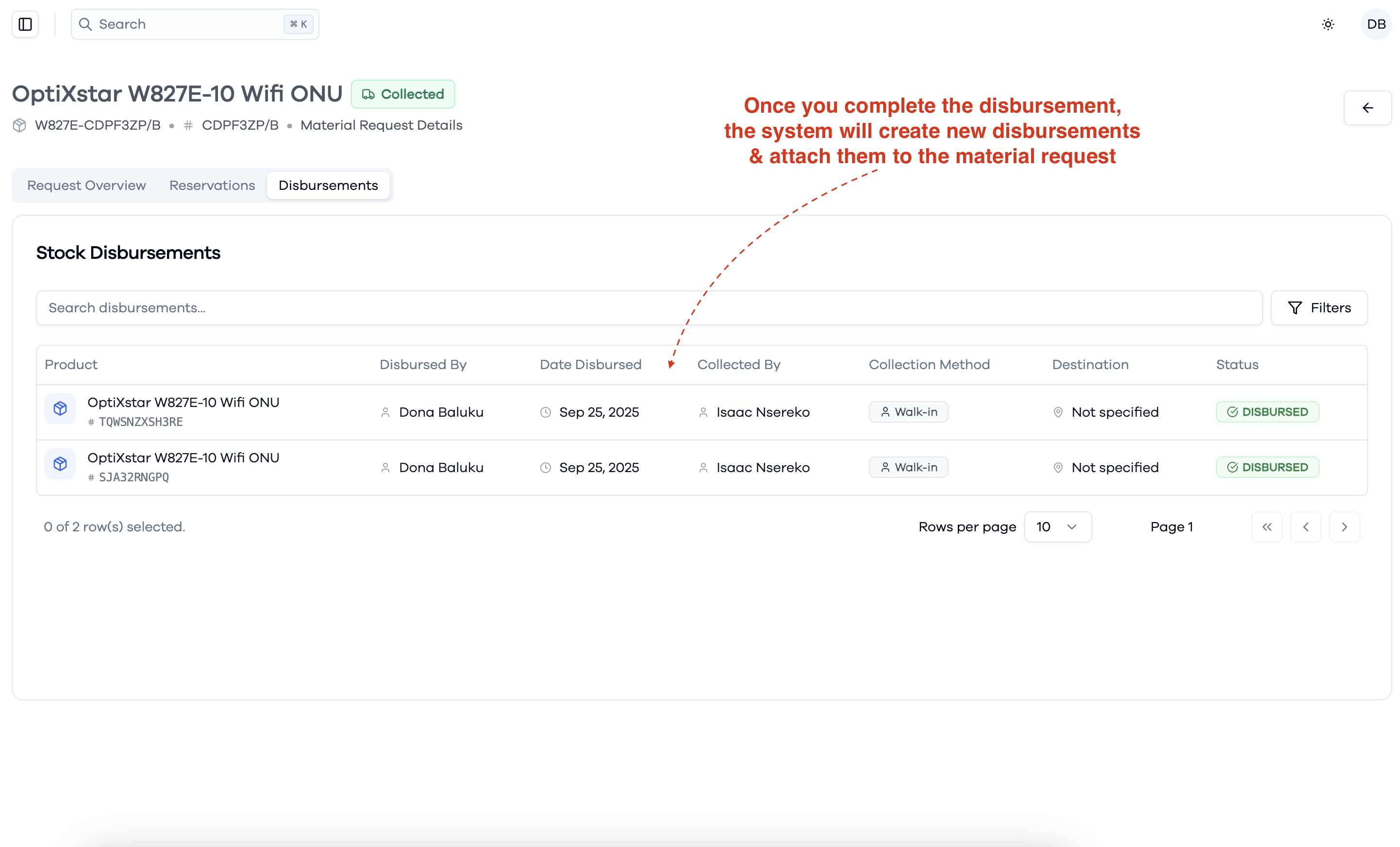
- Go to the Material Requests section from the sidebar menu in the Inventory Management system.
- Use the search bar at the top to quickly find specific material requests.
- Click the Filters button to filter requests by status, warehouse, or other criteria.
- Review the list to see product details, quantities, status, requester, and warehouse information.
- Click on a material request entry to view its details and proceed with receiving or processing the request.
This interface helps you efficiently manage and track all material requests in the system.
View and Manage Material Requests
Accept a Material Request
After selecting a material request from the list:
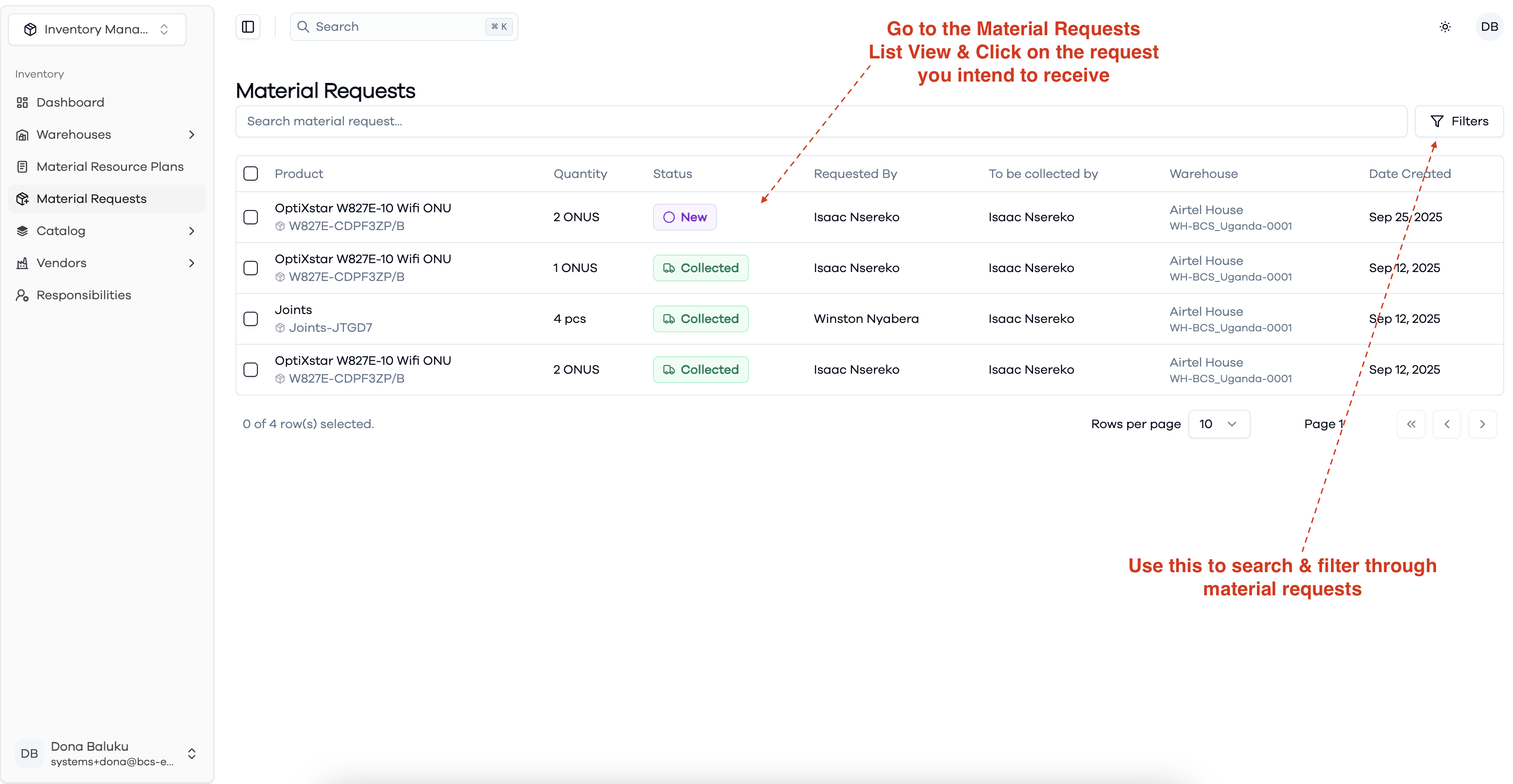
- Review the request details, including quantity, required date, MRP status, and additional notes.
- Click the Accept Request button at the top right to proceed with fulfilling the request.
This action moves the request forward in the processing workflow.
Process Reservations and Mark as Pending Collection
After accepting a material request:
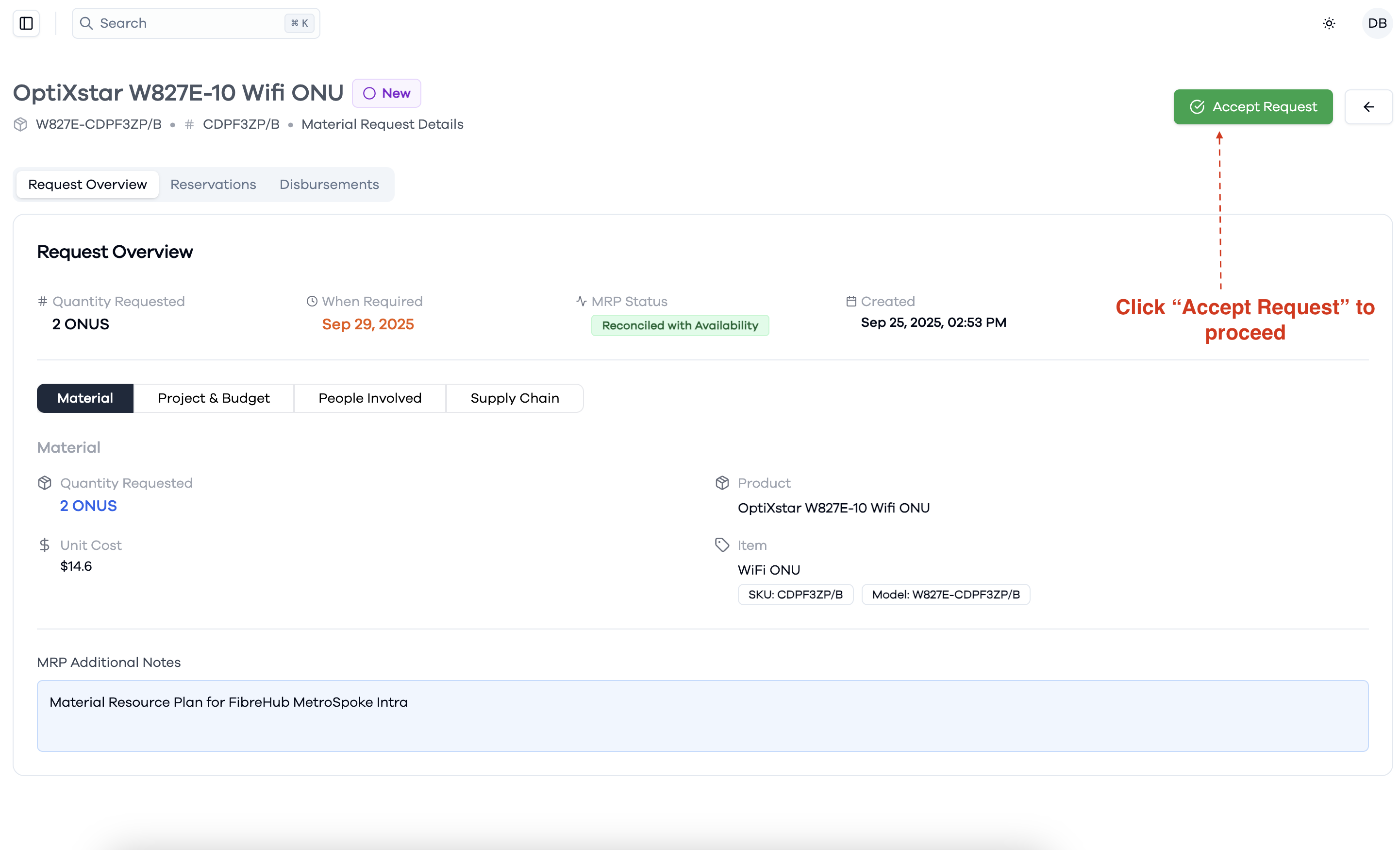
- Any reserved stock items will be attached to the material request and shown under the Reservations tab.
- Review the reserved items, their quantities, status, and health.
- Once all necessary material preparations are complete, click the Mark as Pending Collection button at the top right.
This action updates the request status and prepares it for collection by the requester.
Disburse Reserved Items
When a material request is marked as pending collection:
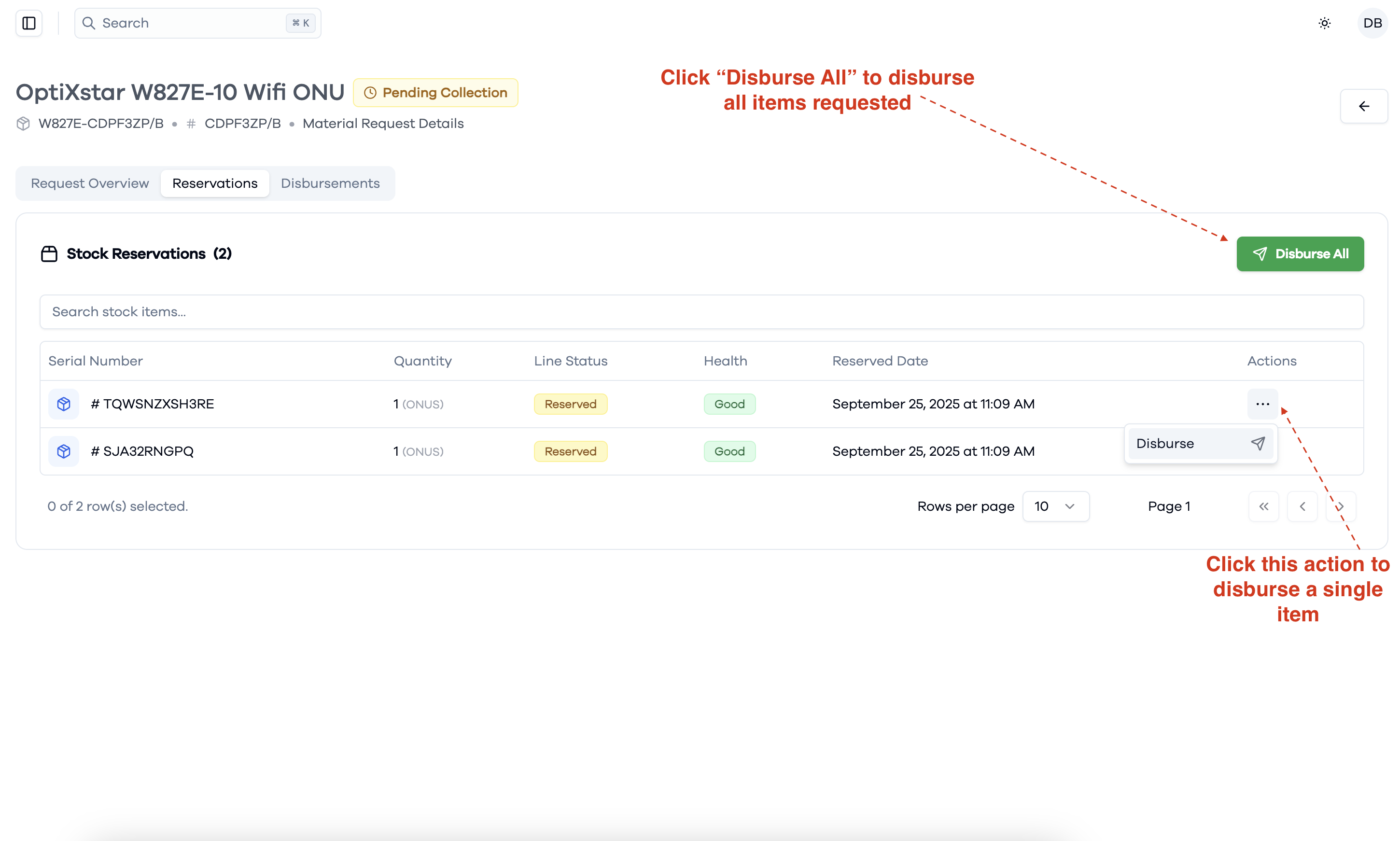
- Go to the Reservations tab to view all reserved stock items attached to the request.
- To disburse all items at once, click the Disburse All button at the top right.
- To disburse a single item, click the Disburse action next to the specific item in the list.
This process ensures that the requested materials are handed over to the requester as needed.
Complete the Disbursement Process
When disbursing reserved items:
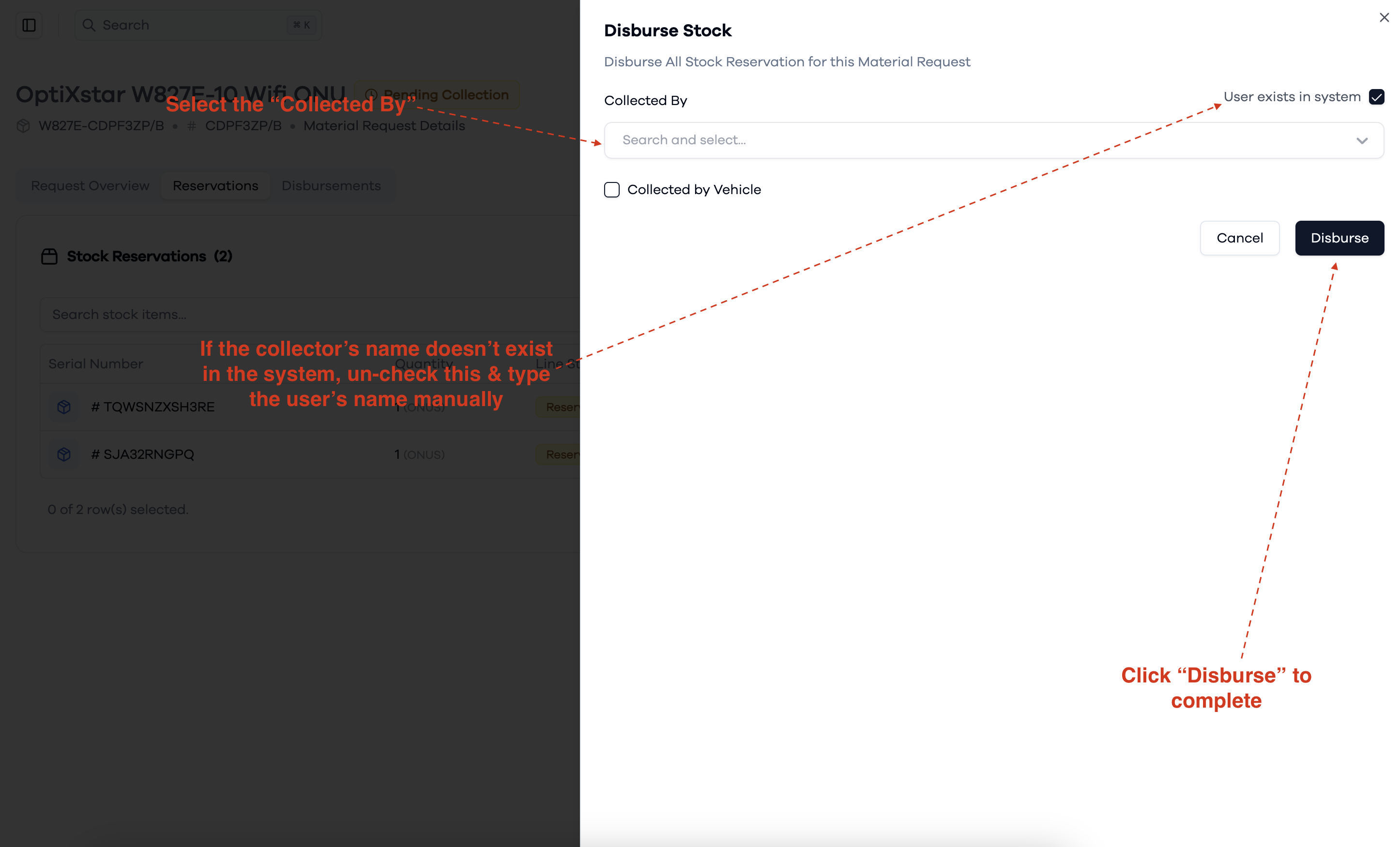
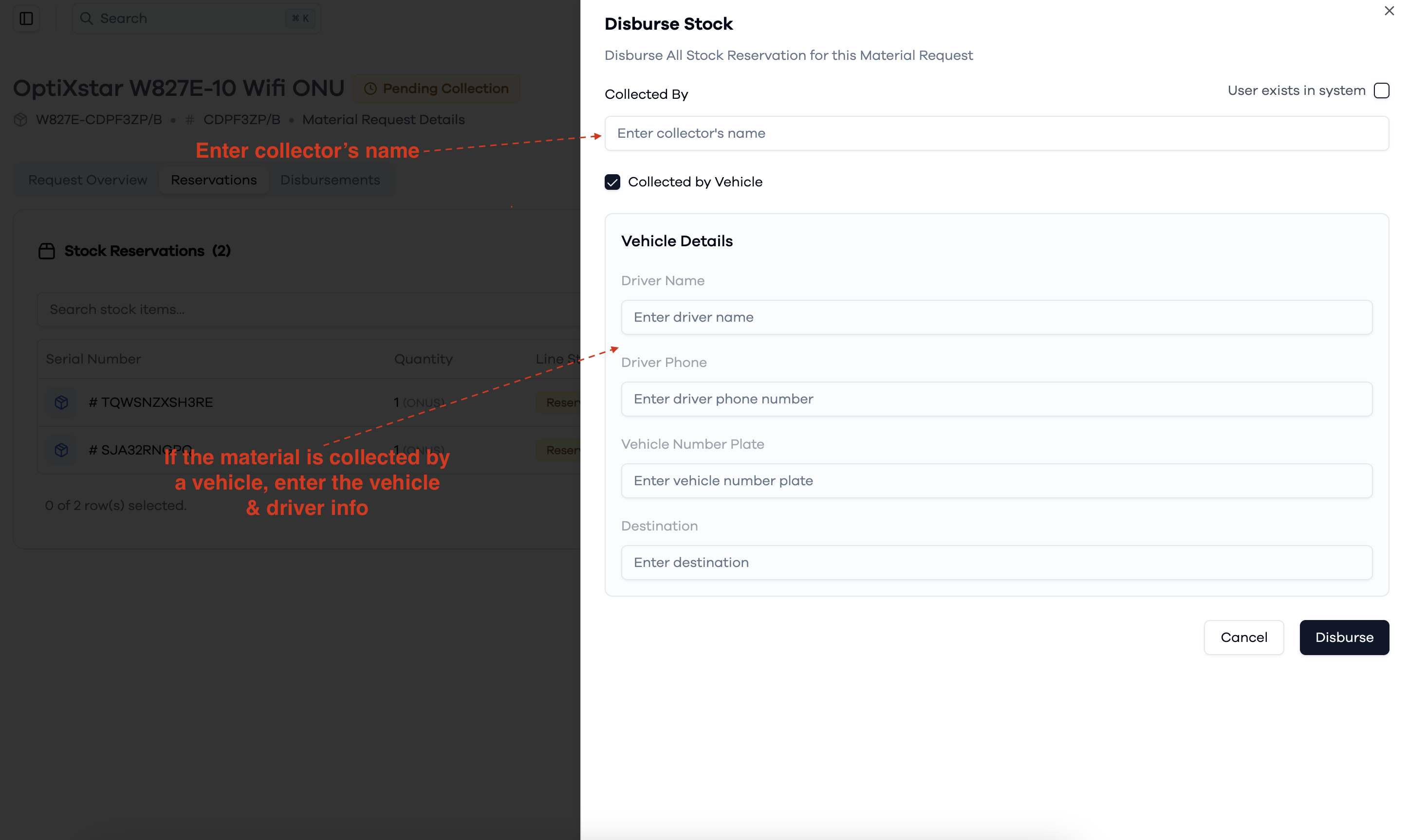
- In the disbursement dialog, select the Collected By user from the dropdown. If the collector does not exist in the system, uncheck the "User exists in system" box and enter the name manually.
- Optionally, indicate if the material is collected by vehicle.
- Click Disburse to complete the process and hand over the items.
This ensures accurate tracking of who collected the materials and completes the material request workflow.
View Disbursement Records
After you complete the disbursement process:
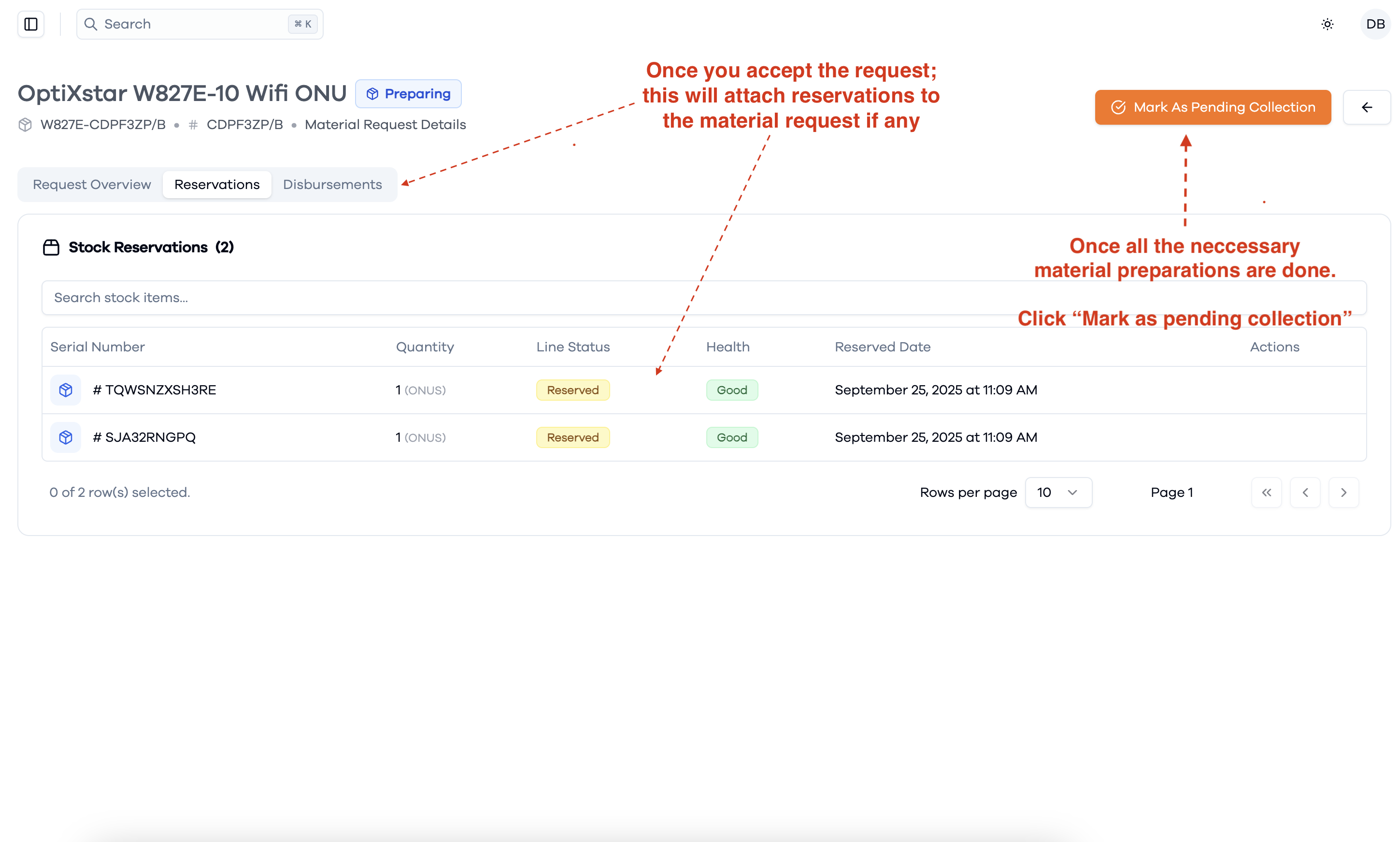
- The system will automatically create new disbursement records for each item disbursed.
- These records are attached to the material request and can be viewed under the Disbursements tab.
- Each record shows the product, who disbursed and collected it, the collection method, destination, date, and status.
This provides a clear audit trail for all material disbursements related to the request.