Handling Project Budgets
To handle project budgets:
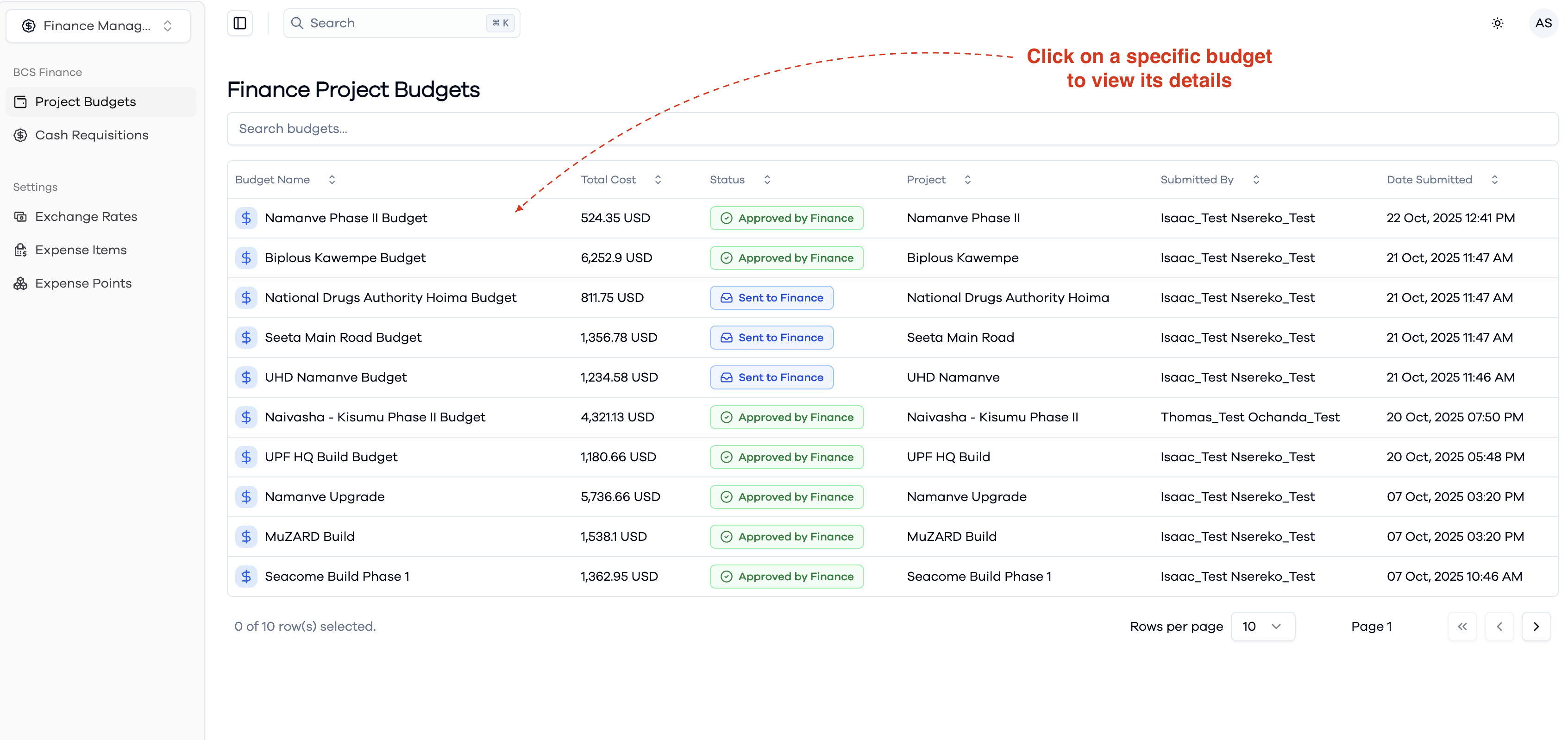
- Go to the Project Budgets section from the sidebar menu in the Finance Management system.
- Use the search bar at the top to quickly find specific budgets.
- Review the list to see budget details, total cost, status, project information, and submission details.
- Click on a specific budget entry to view its details and proceed with the approval process.
- Create purchase orders and manage budget items as needed throughout the project lifecycle.
This interface helps you efficiently manage and track all project budgets in the system.
View Finance Project Budgets
Confirm Budget Receipt
After budget receipt:
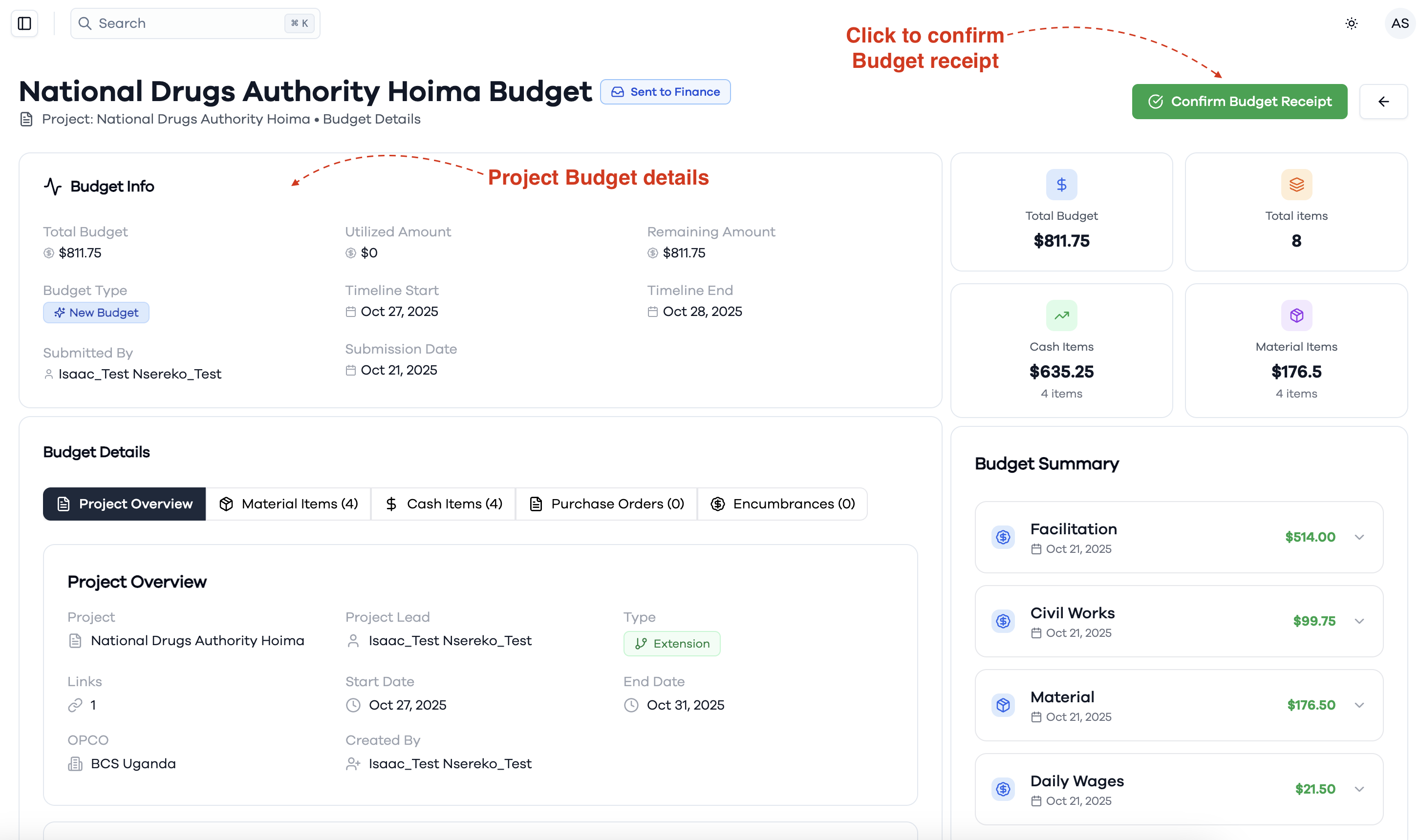
- The budget status will change to "Received by finance" indicating it's ready for processing.
- Review the complete project budget details including the updated total budget amount.
- Navigate through all tabs to ensure accuracy of budget allocations and project information.
- Click the Confirm Budget Receipt button to initiate this action.
Review Budget Details and Approve
When reviewing a budget for approval:
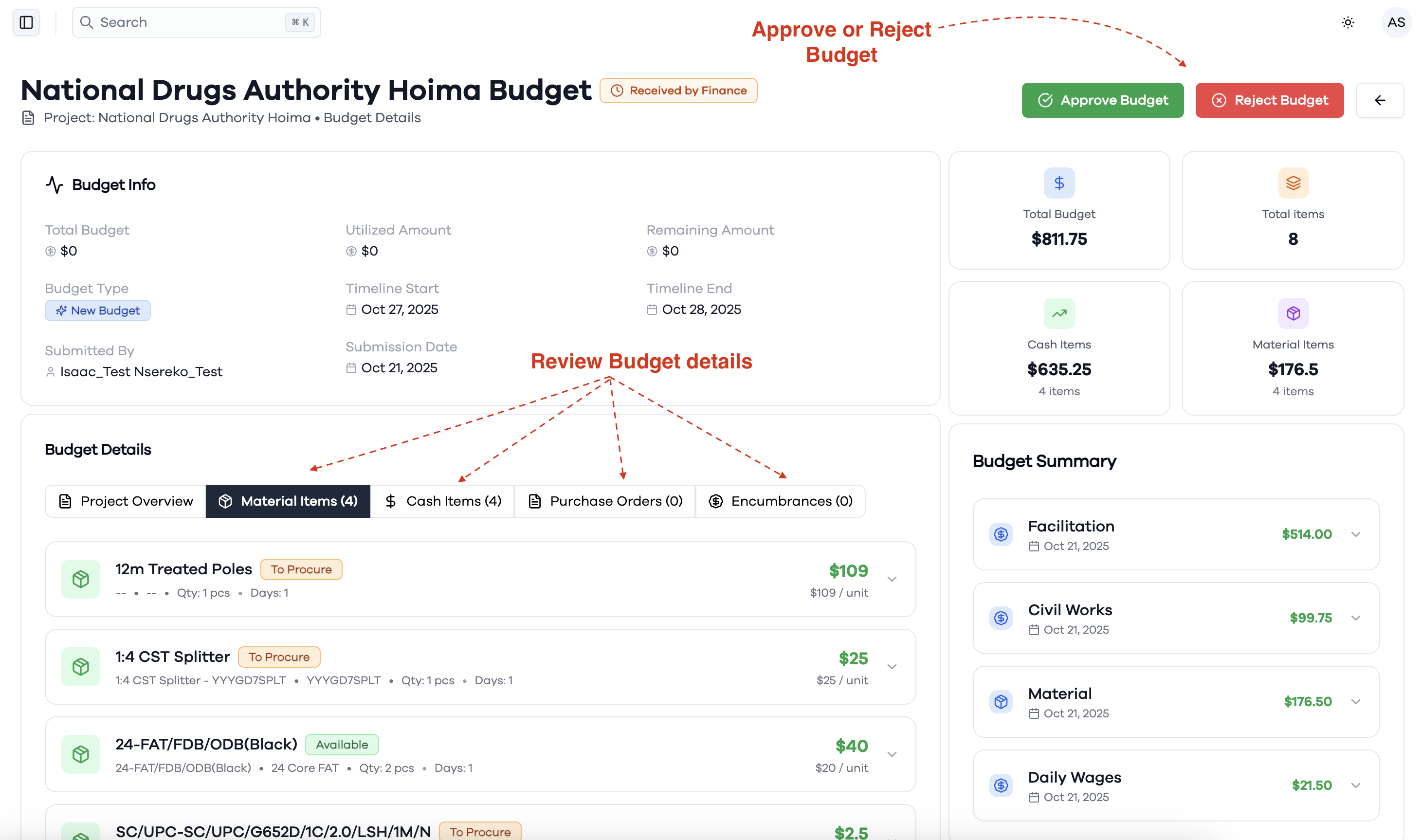
- Navigate through the different tabs: Project Overview, Material Items, Cash Items, Purchase Orders, and Encumbrances.
- Review all budget line items including materials, their quantities, unit costs, and procurement status.
- Examine the budget summary on the right side showing different cost categories (Facilitation, Civil Works, Material, Daily Wages).
- Once satisfied with the budget details, use the Approve Budget or Reject Budget buttons at the top right.
This comprehensive review ensures all budget components are properly validated before approval.
Create Purchase Orders from Budget
After selecting a budget from the list:
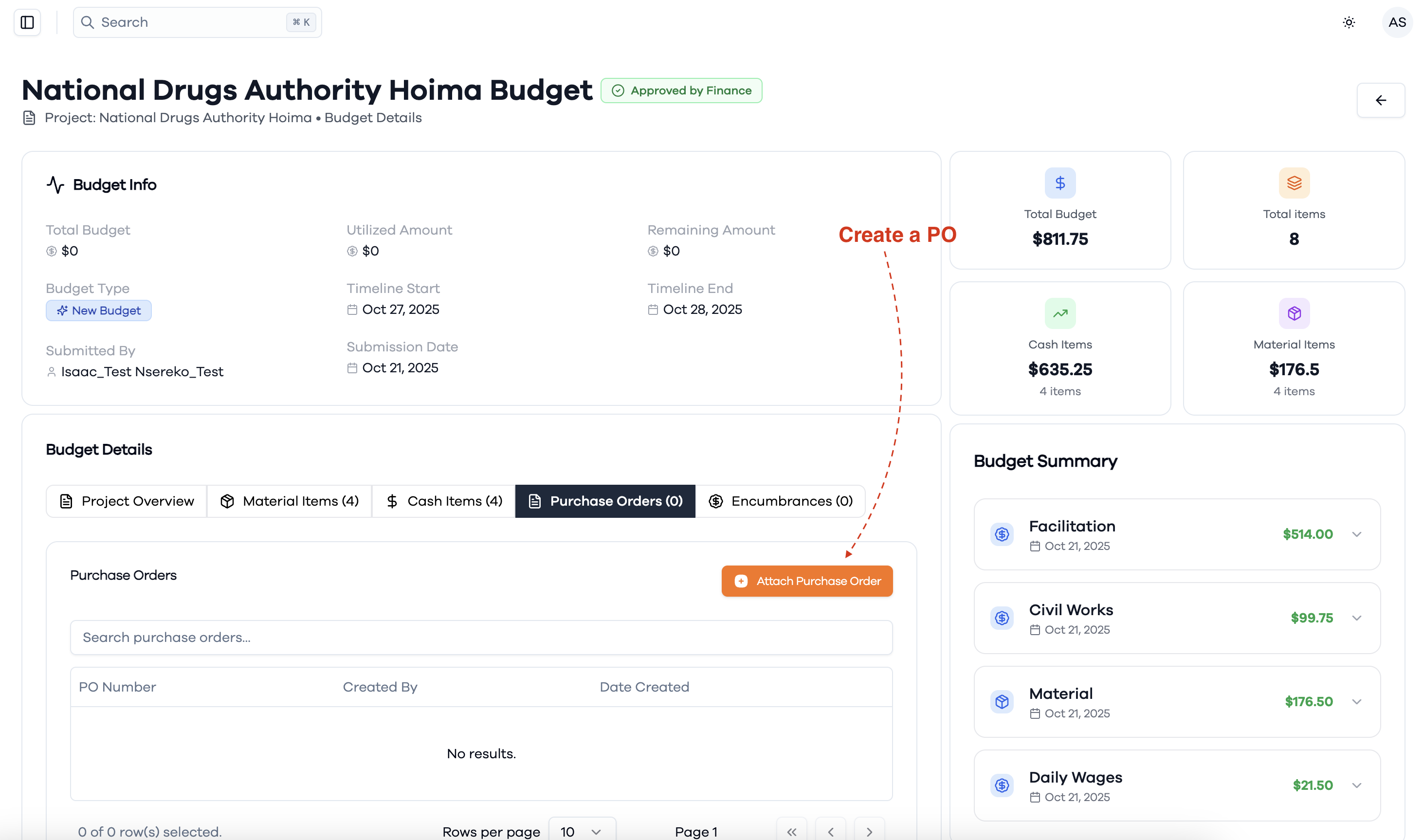
- Review the budget details including total budget, utilized amount, remaining amount, and timeline information.
- Navigate to the Purchase Orders tab to view existing purchase orders or create new ones.
- Click the Attach Purchase Order button to initiate a new purchase order from the budget items.
Manage Purchase Orders List
Once purchase orders are created:
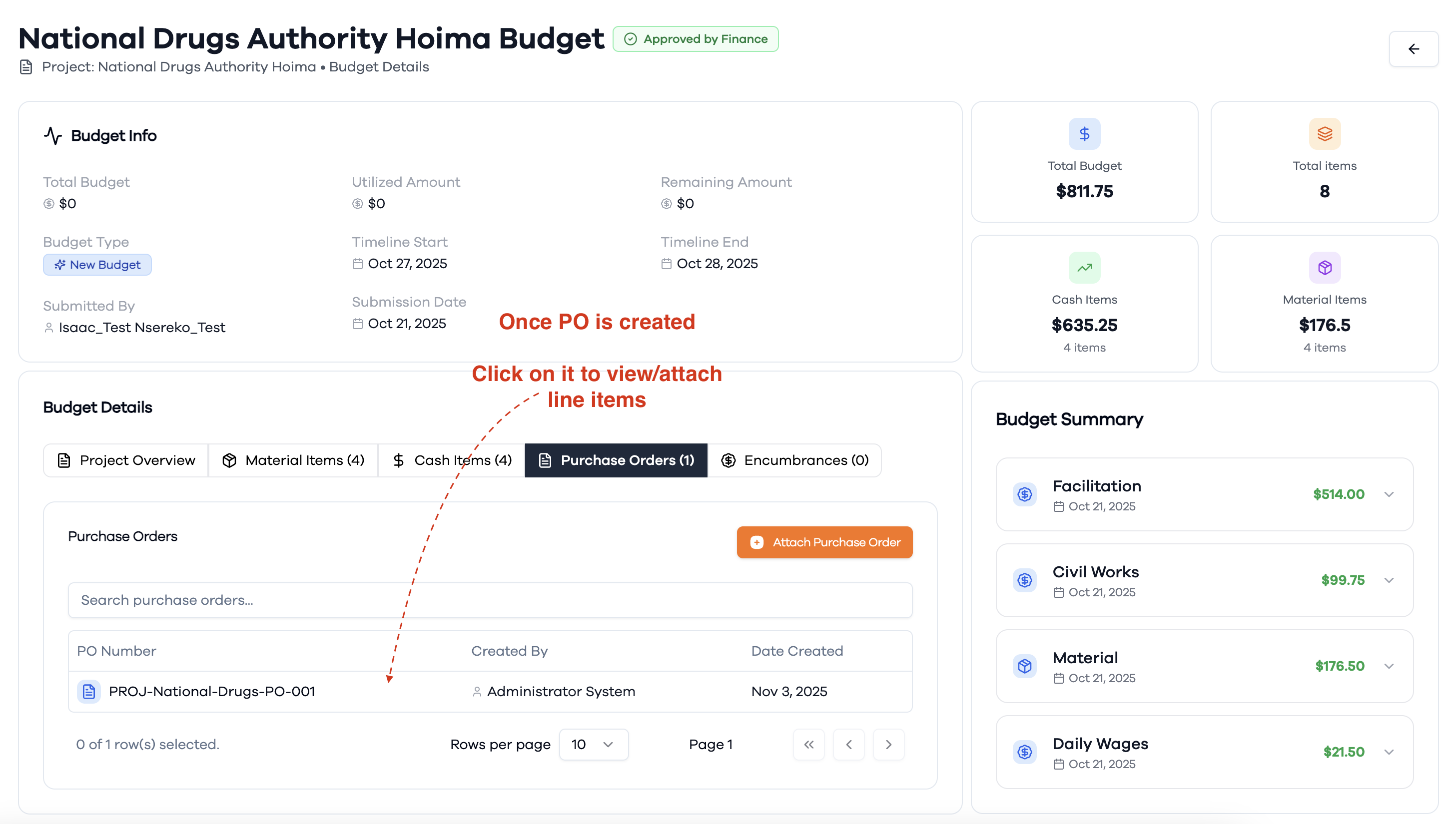
- View all purchase orders associated with the budget in the Purchase Orders tab.
- Review PO details including PO number, supplier information, total amount, and status.
- Click on individual POs to view detailed line items and make modifications if needed.
Attach Purchase Order Line Items
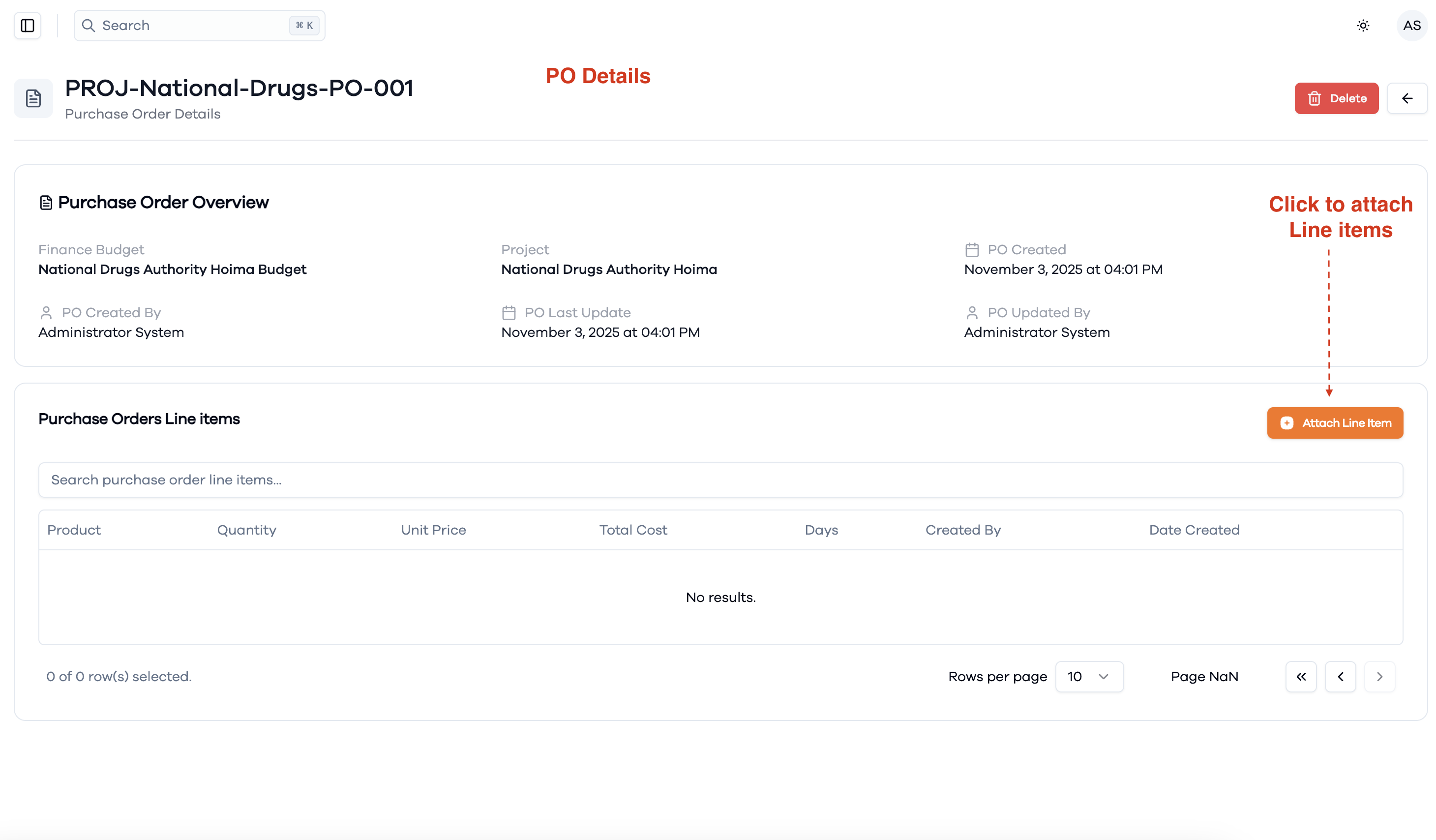
To add specific items to a purchase order:
- Within a purchase order, click the Attach PO Line Item button to add budget items.
Create Purchase Order Line Items
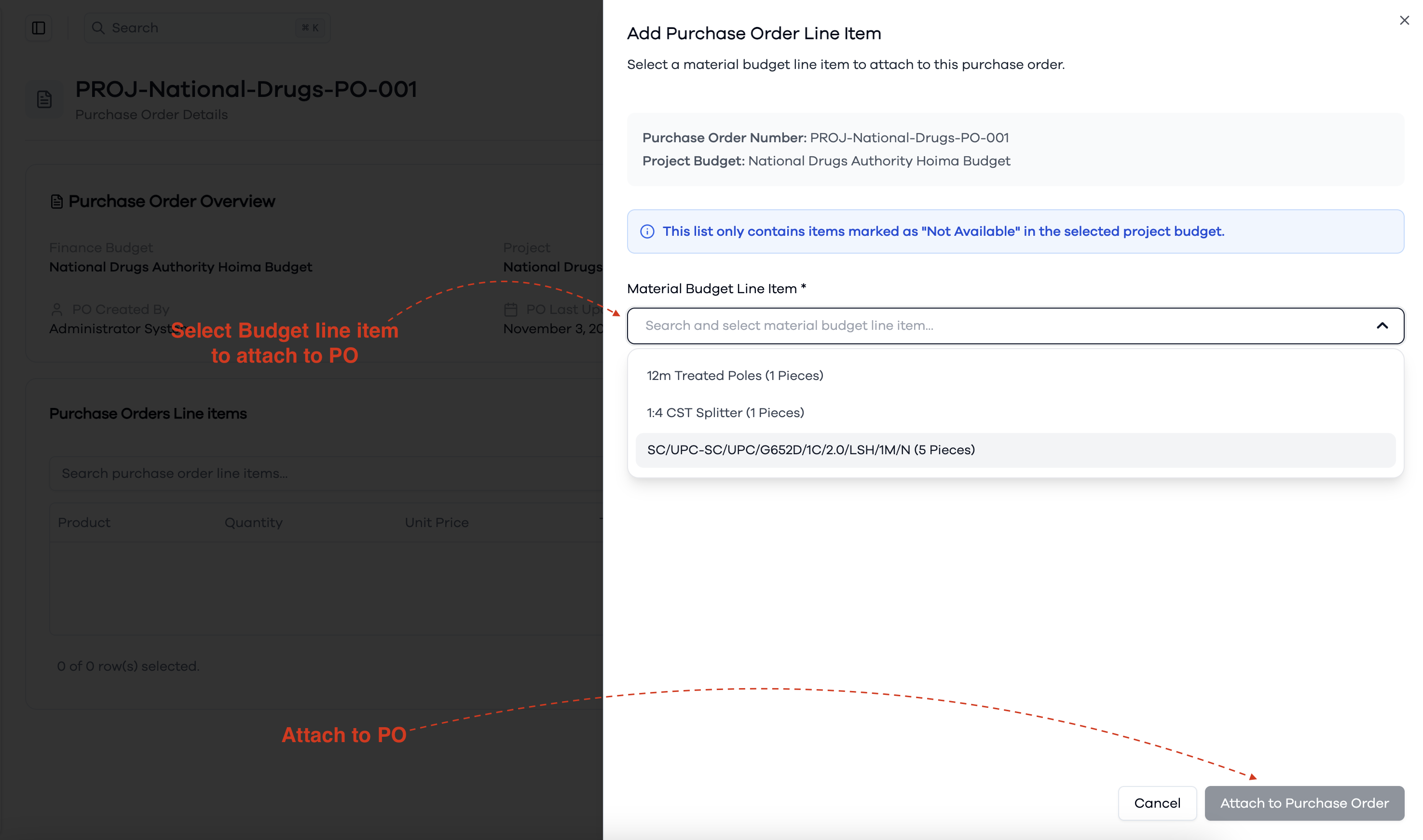
When creating/attaching PO line items:
- Fill in the add purchase order line item creation form
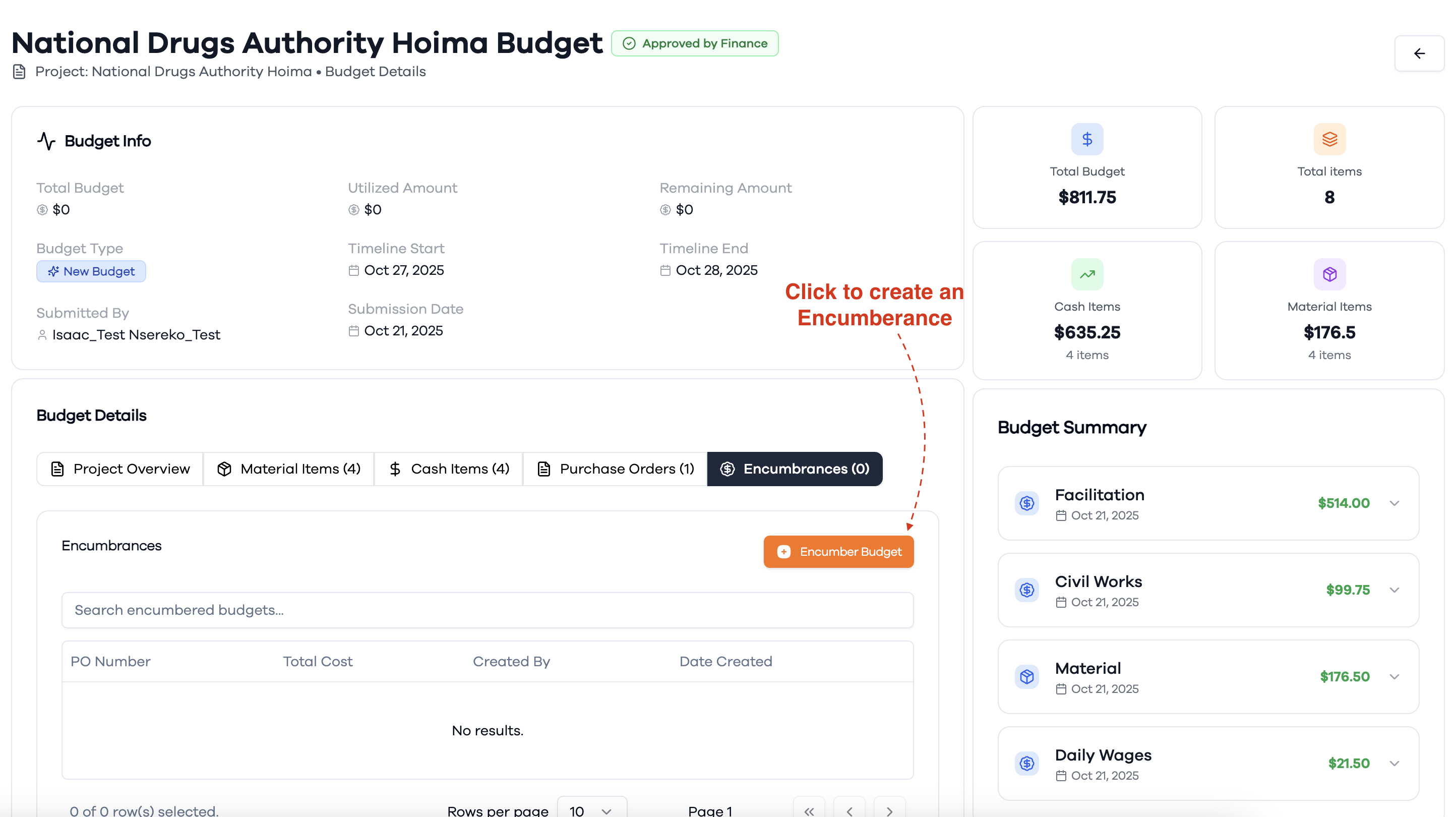
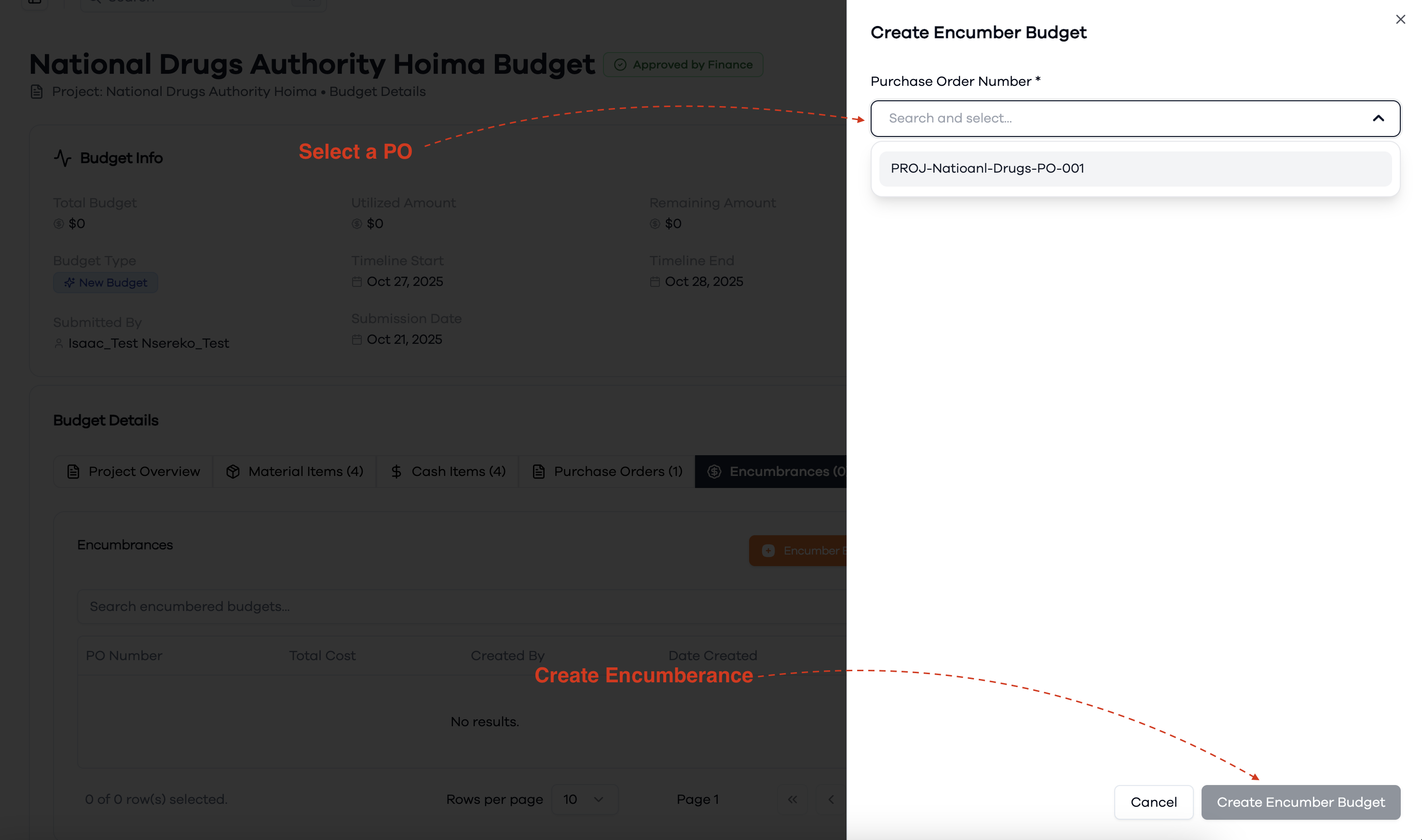
Create Budget Encumbrances
To manage budget commitments:
- Navigate to the Encumbrances section within the budget management system.
- Click + Encumber budget to reserve budget amounts for specific commitments.
- Enter encumbrance details including amount and purchase order line item.
Monitor Budget Encumbrances
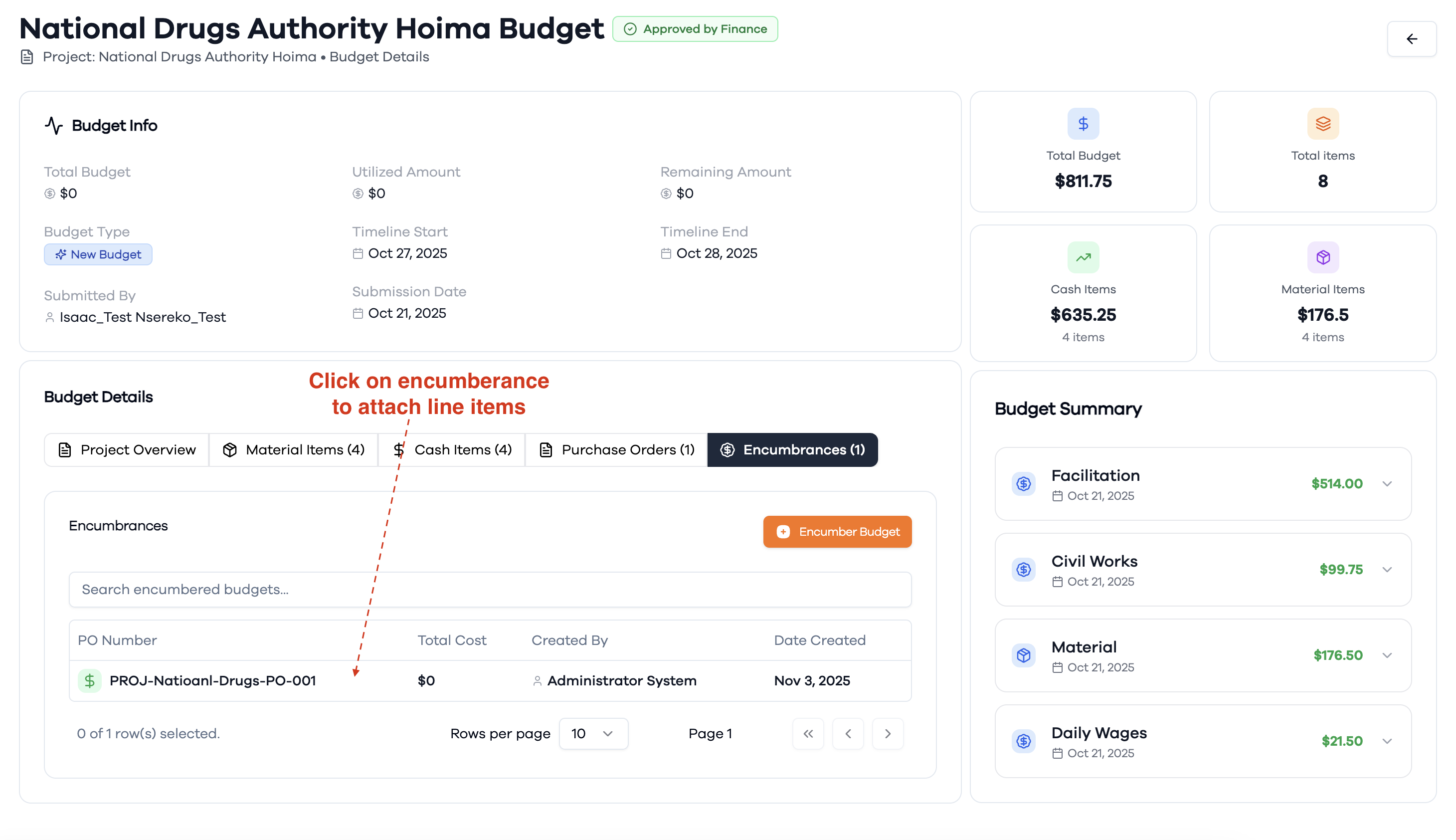
In the encumbrances overview:
- View all budget encumbrances in a centralized list showing amounts, purposes, and linked Purchase order
Attach Encumbrance Line Items
For detailed encumbrance management:
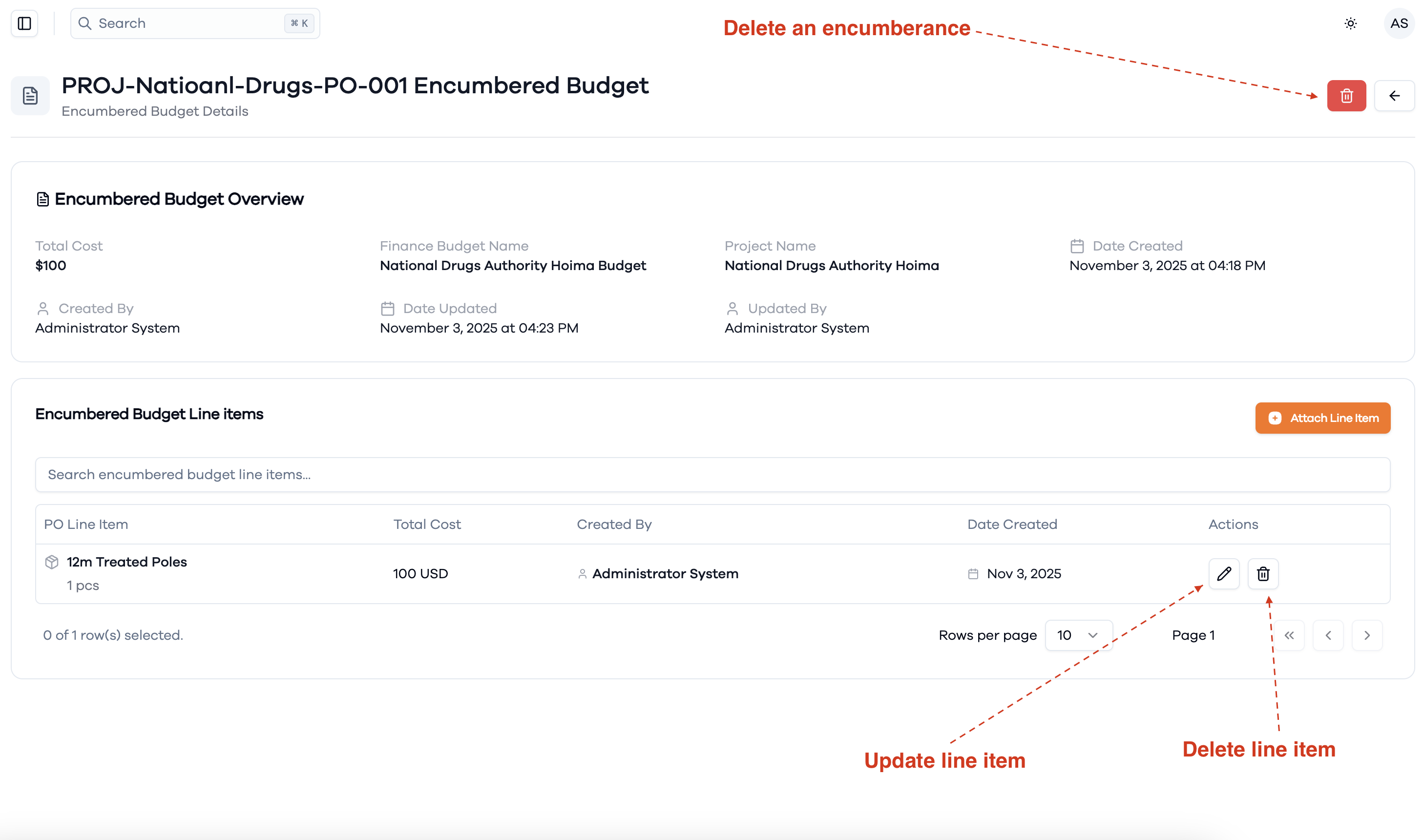
- Click on specific encumbrances to view detailed line item breakdowns.
- Review individual components of each encumbrance including amounts and linked po and po line items.