Handling Cash Requisitions
To handle cash requisitions:
- Go to the Cash Requisitions section from the sidebar menu in the Finance Management system.
- Use the search bar at the top to quickly find specific requisitions.
- Review the list to see requisition details, amounts, status, requester information, and submission dates.
- Click on a specific requisition entry to view its details and proceed with the approval process.
- Submit requisitions for review and approval as needed throughout the process.
This interface helps you efficiently manage and track all cash requisitions in the system.
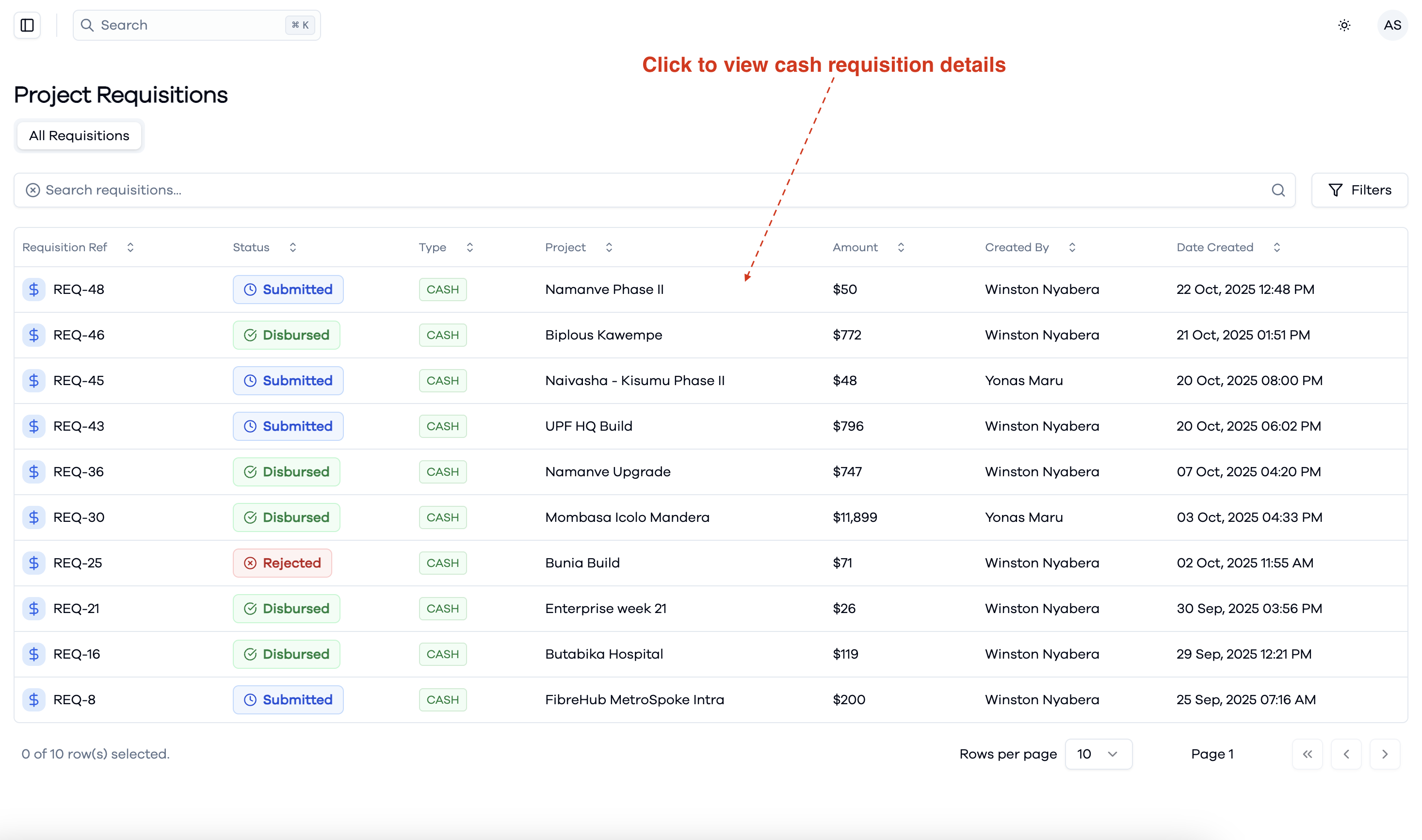
View Finance Cash Requisitions
In the Cash Requisitions list view:
- Review all cash requisitions in a centralized dashboard showing requisition IDs, amounts, and current status.
- Review submission details including who submitted each requisition and when.
- Click on any requisition entry to drill down into specific details for further processing.
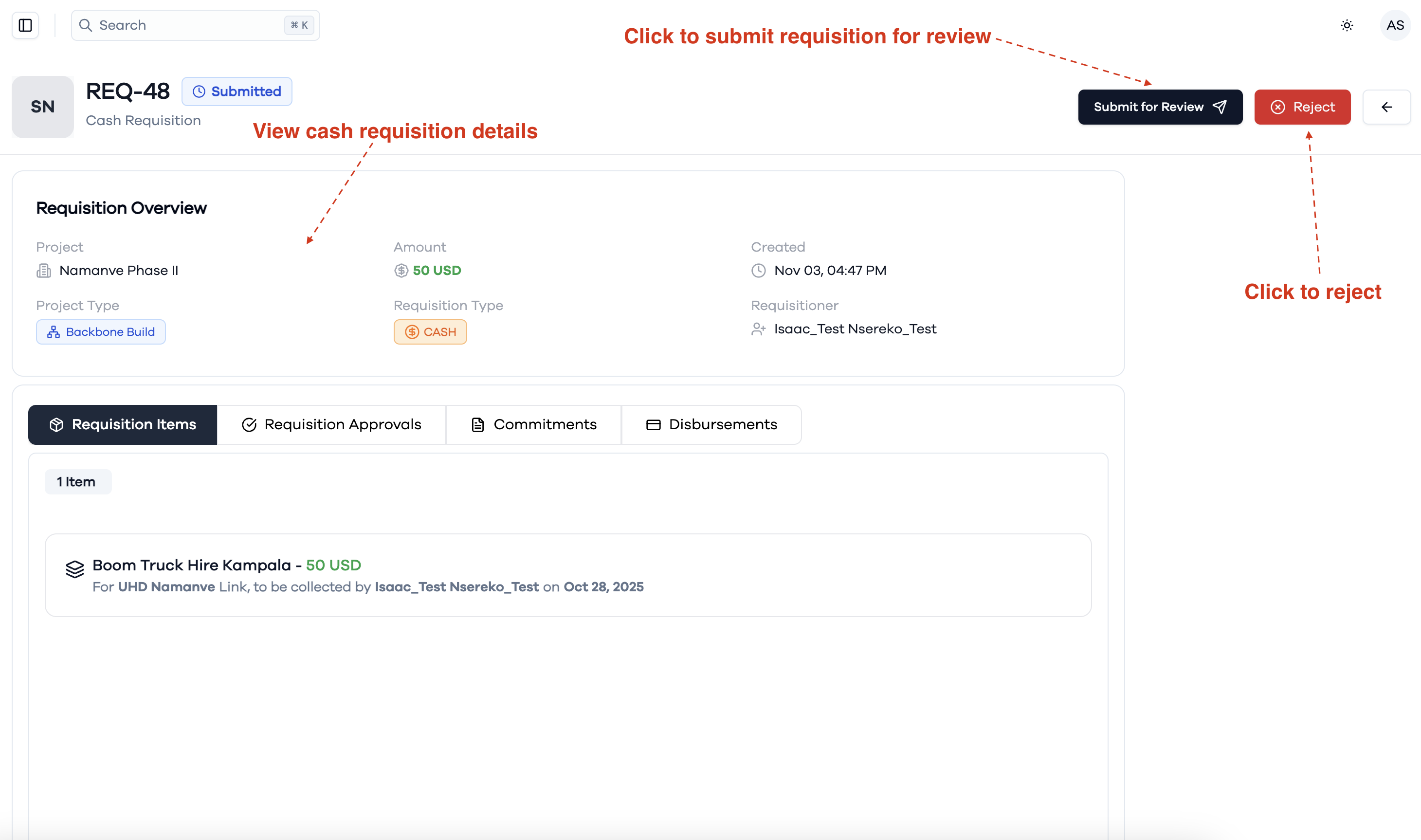
View Cash Requisition Details
After selecting a cash requisition from the list:
- Review the complete requisition details including the total amount, purpose, and requester information.
- Navigate through different sections to examine line items
- Verify that all requisition components are complete.
- Check the current status and approval workflow progress.
- Use the Submit for Review button when ready to move the requisition forward in the approval process.
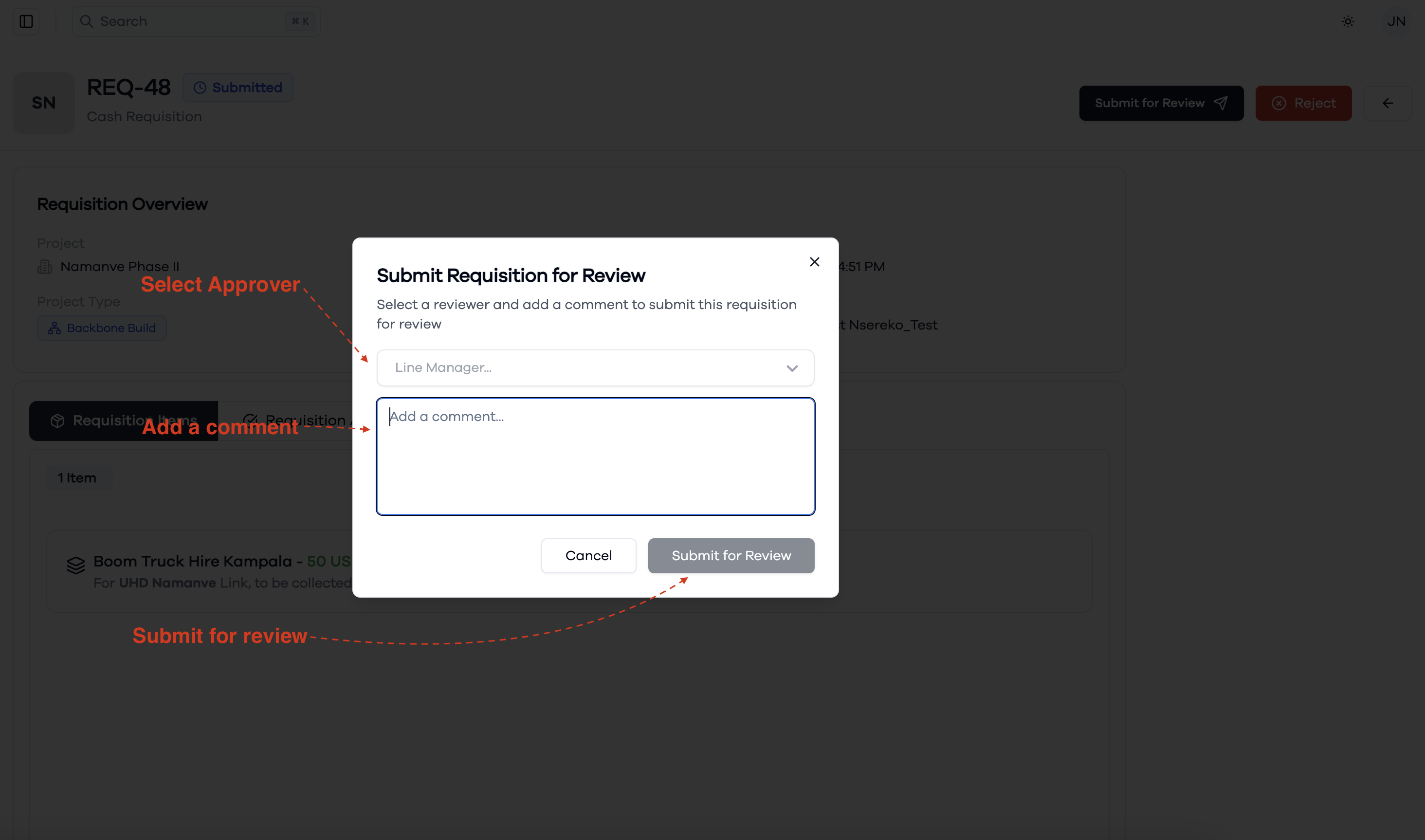
Submit Requisition for Approval
When submitting a cash requisition for approval:
- Click the Submit for Review button to initiate the approval workflow.
- In the submission dialog, select the appropriate Approver from the dropdown list.
- Add any additional comments or notes that will help the approver understand the requisition context.
- Verify all information is correct before proceeding.
- Click Submit to send the requisition to the selected approver.
This process ensures proper routing of requisitions through the established approval hierarchy and maintains an audit trail of all approval actions.
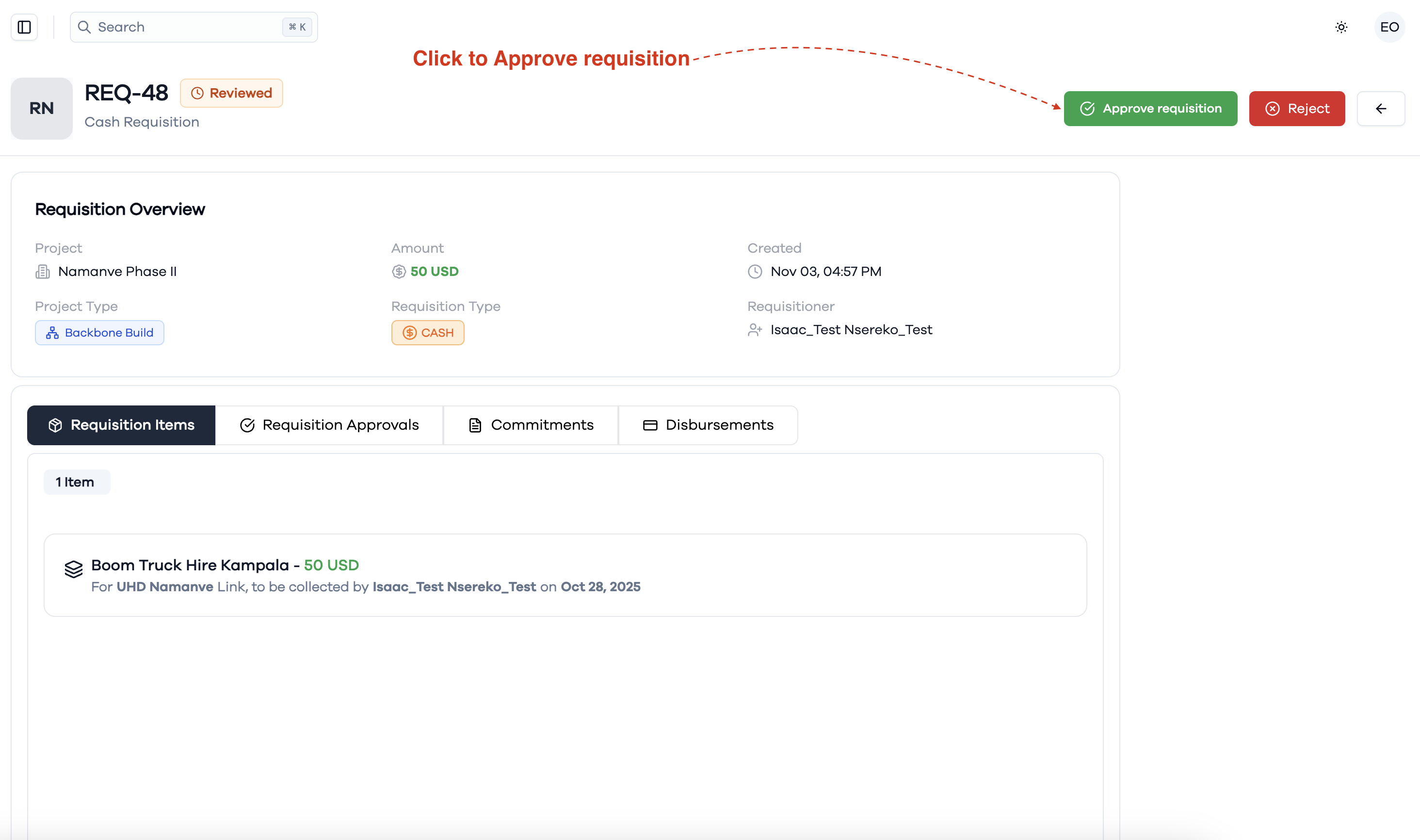
Approve Cash Requisition
When an approver receives a requisition for review:
- The approver can view the requisition details and review all supporting information.
- Navigate through the requisition components to verify amounts, purposes, and justifications.
- Click the Approve button to approve the requisition or Reject if it doesn't meet requirements.
- Add approval comments or feedback as needed for documentation purposes.
- Once approved, the requisition status updates and triggers automatic system processes.
This approval step validates the requisition and authorizes the financial commitment.
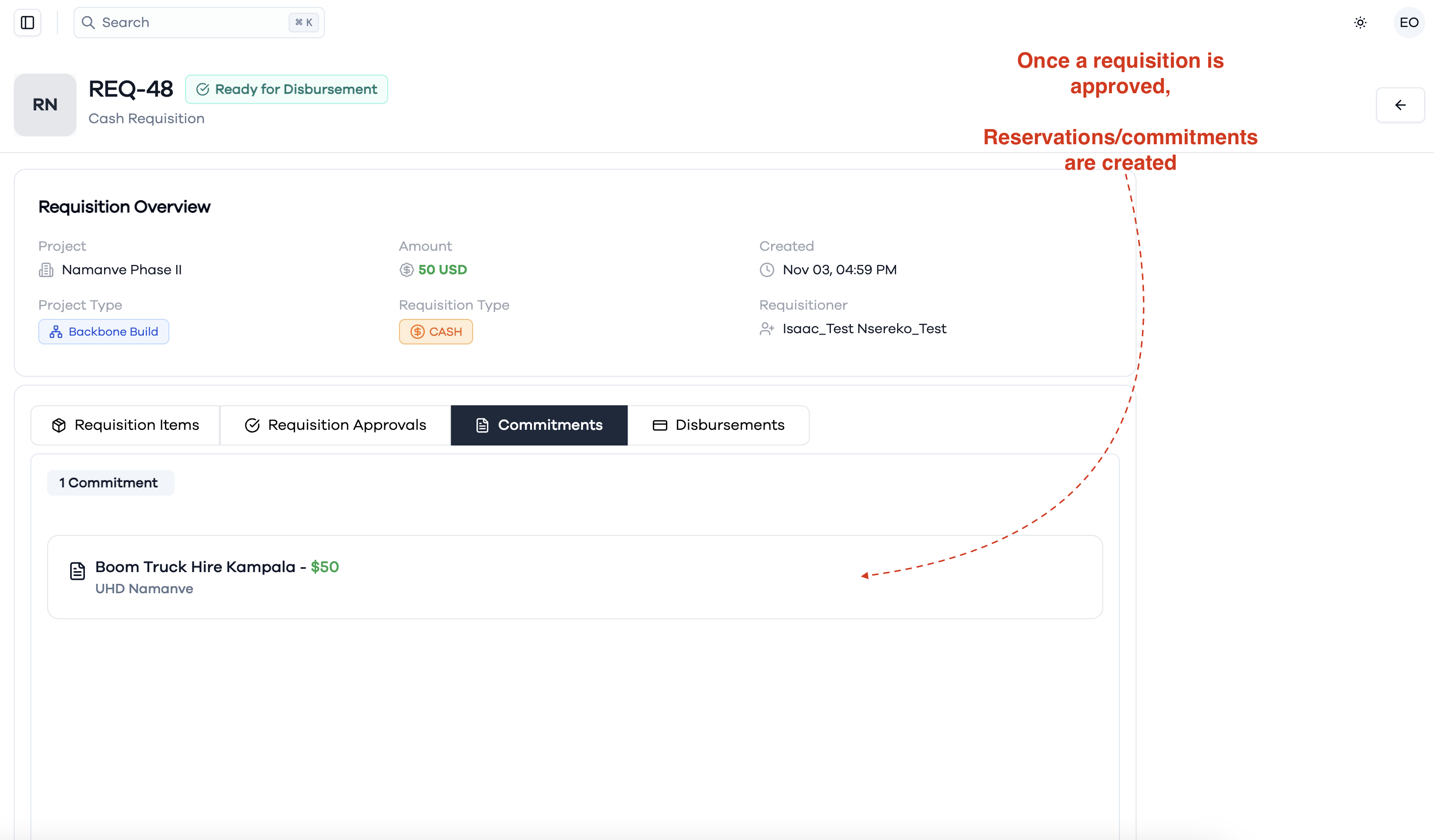
System Creates Automatic Commitments
After requisition approval:
- The system automatically creates and attaches commitments/reservations for the approved amount.
- These commitments ensure that the approved funds are reserved and tracked against the budget.
- View the Commitments tab to see all automatically generated commitments linked to the requisition.
- Monitor commitment status and amounts to ensure proper fund allocation.
- The commitments prevent overspending and maintain financial control throughout the process.
This automated process ensures immediate fund reservation upon approval.
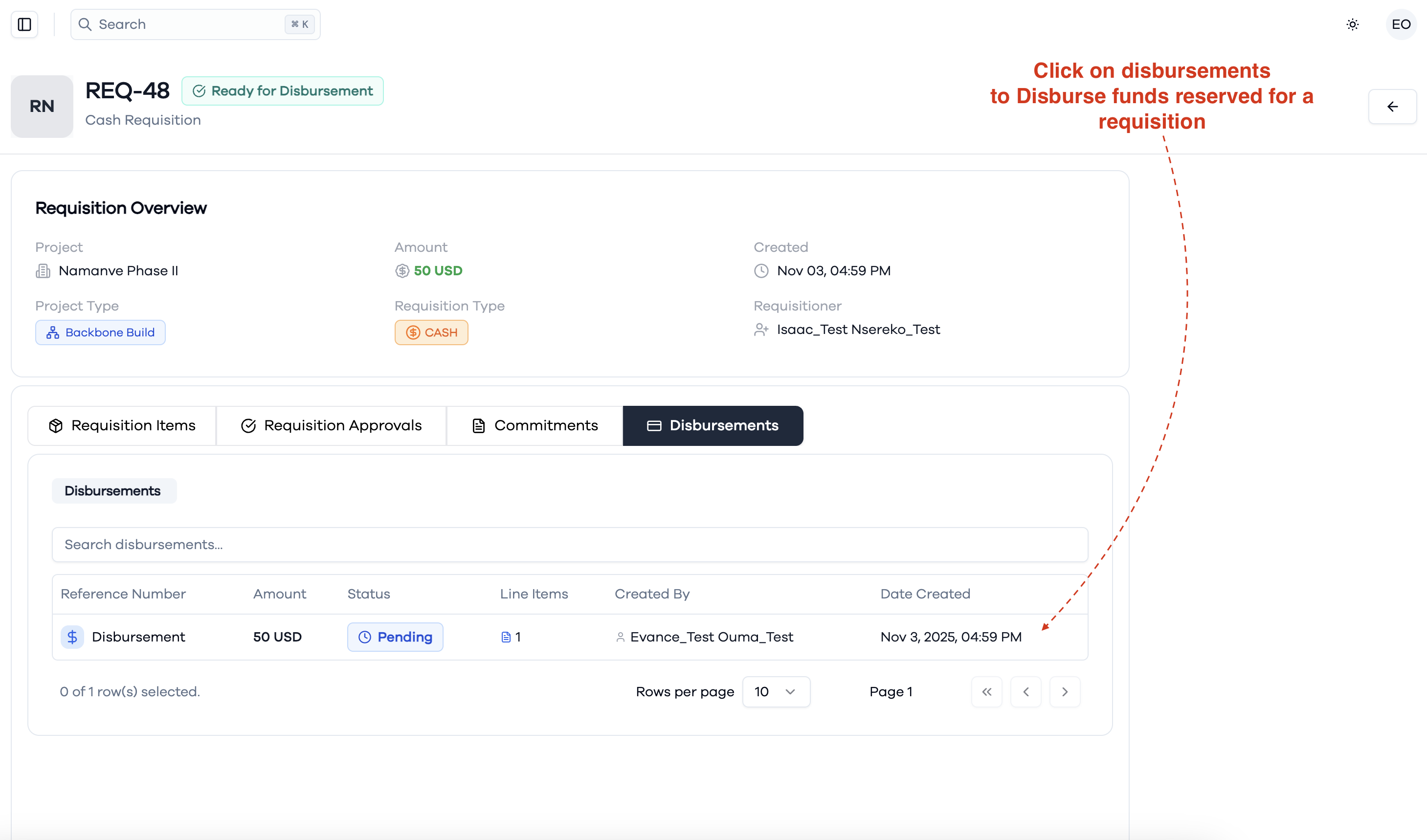
System Creates Pending Disbursements
Following the creation of commitments:
- The system automatically generates disbursements in a Pending state for the approved amounts.
- These pending disbursements are created and ready for completion once funds become available.
- Navigate to the Disbursements tab to view all automatically created disbursement records.
- Review disbursement details including amounts, status, and expected completion timelines.
- Pending disbursements will be processed and completed when the finance team confirms fund availability.
This automated workflow ensures seamless transition from approval to fund disbursement preparation.
Review and Process Disbursements
When processing pending disbursements:
- Navigate to the disbursement details to review all information including amounts, beneficiary details, and purpose.
- Verify that funds are available and all documentation is complete.
- Review the disbursement method (bank transfer, cash, check) and ensure it's appropriate.
- Check beneficiary information for accuracy including account details if applicable.
- Use the Complete Disbursement button to finalize the payment or Cancel Disbursement if needed.
This review process ensures accurate and authorized fund disbursements.
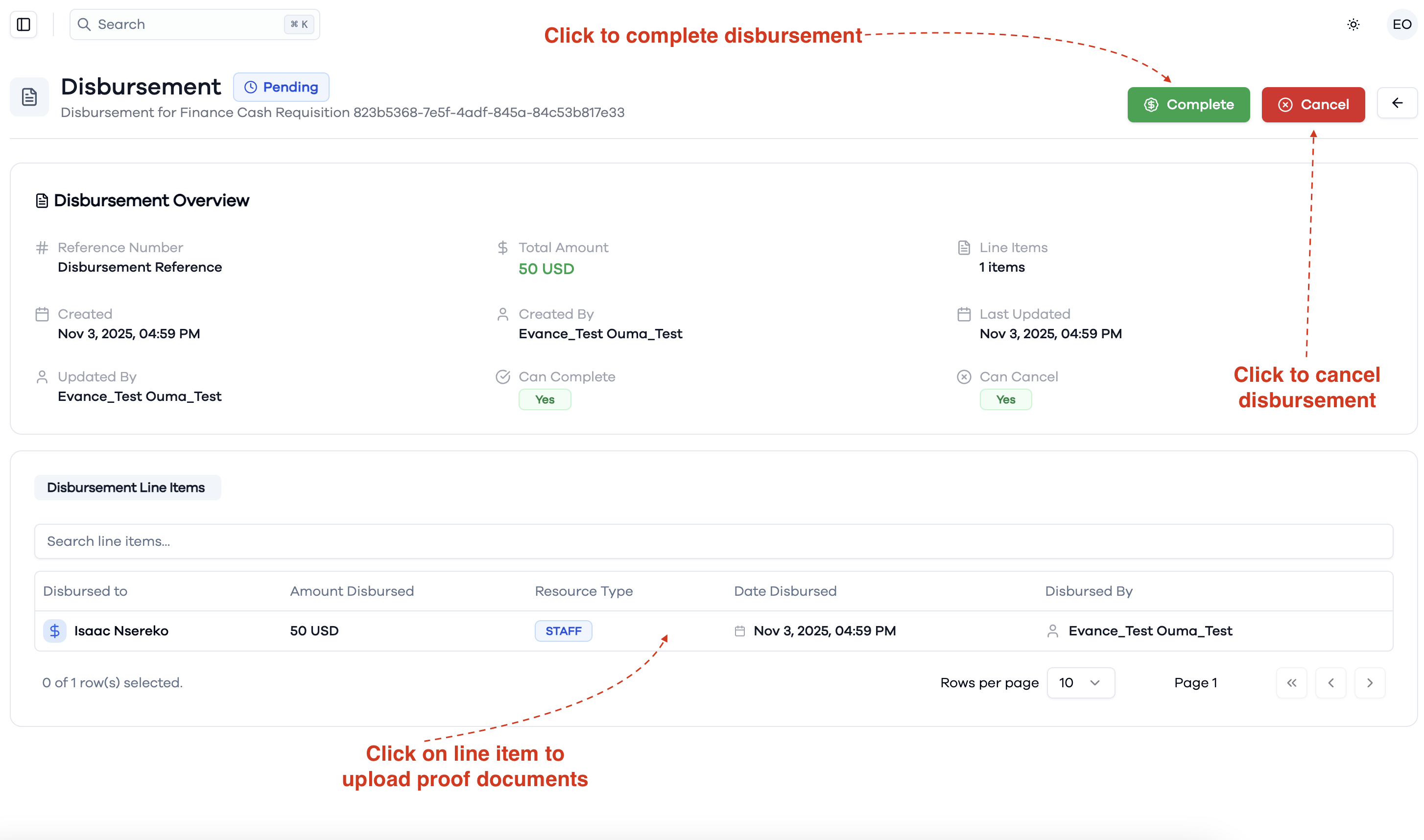
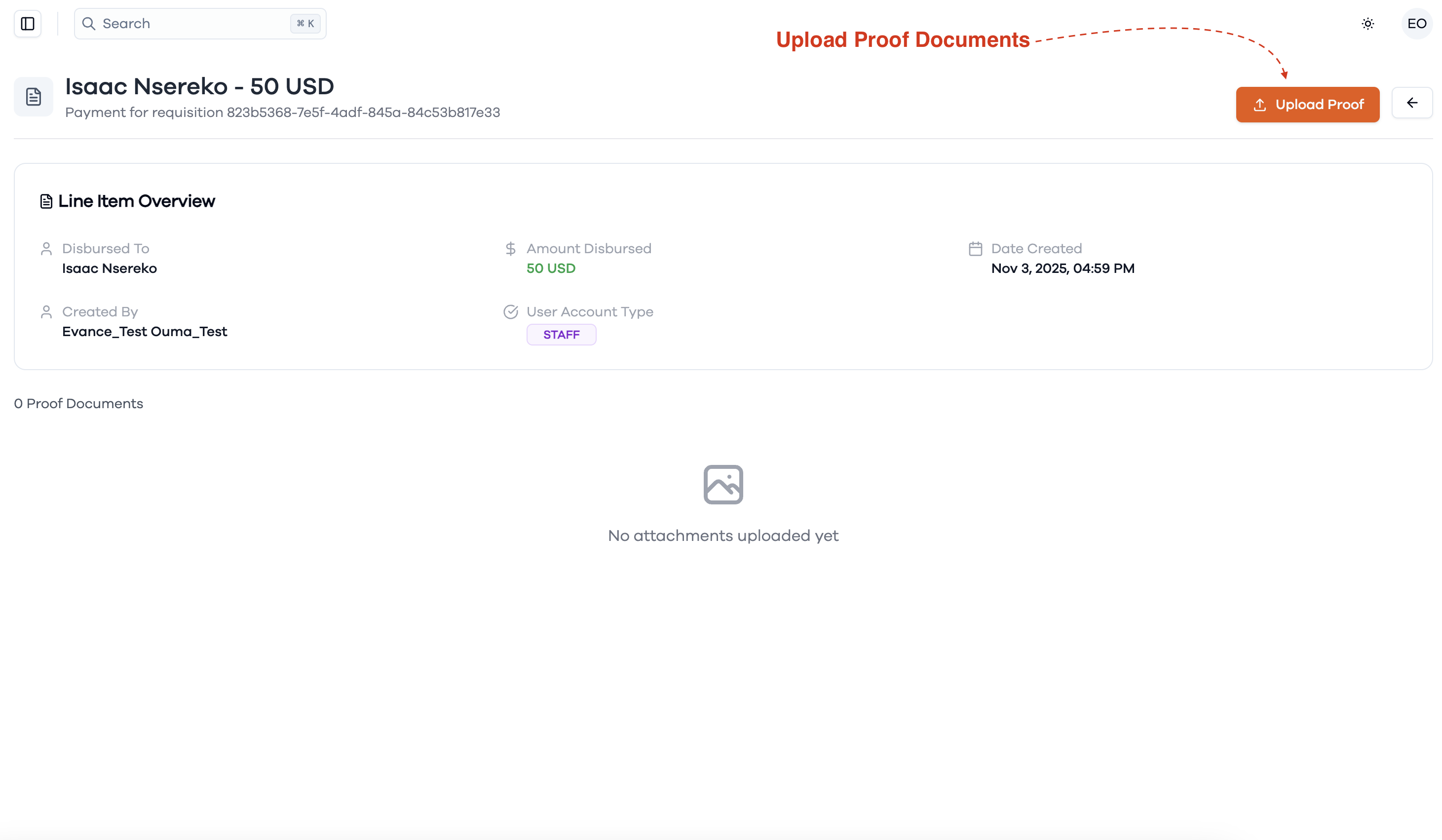
Upload Proof Documents
After completing a disbursement:
- The system will prompt for proof of payment documentation.
- Click Upload Documents or use the file upload area to attach receipts, bank confirmations, or other proof documents.
- Select appropriate document types from the dropdown (Receipt, Bank Statement, Payment Confirmation, etc.).
- Add document descriptions or notes for future reference.
- Ensure all uploaded documents are clear and contain relevant payment information.
- Click Save to attach the documents to the disbursement record.
This documentation provides an audit trail and verification of completed payments for compliance and accounting purposes.